How to Connect a Smart Plug to Alexa: Easy Setup Guide 2026
Lead Consumer Product Specialist & Family Gear Director at US Family Mart Consumer Testing Lab · Certified Consumer Products Quality Specialist (CPQS), ASTM F15 Consumer Standards Member · 12+ years evaluating household appliances, smart home hardware, child safety equipment, and consumer lifestyle products.
So you've got a smart plug in one hand and your Echo in the other, and you want to know how to connect smart plug to Alexa without spending an hour on forums. Good news: the actual pairing process takes under five minutes for most Wi-Fi plugs. Bad news: one tiny setting on your router trips up more setups than anything else.
That setting is the 2.4 GHz Wi-Fi band. Nearly every Wi-Fi smart plug runs on 802.11 b/g/n at 2.4 GHz, and most 5 GHz-only networks simply won't see it, per manufacturer specifications from TP-Link, Wyze, and Govee. Before you touch the Alexa app, figure out which band your phone is sitting on.
That single check is where most of this process either sails or stalls.
Quick Answer: What You Actually Need Before You Start
To connect a smart plug to Alexa, first pair the plug in its own manufacturer app on a 2.4 GHz Wi-Fi network. Then open the Alexa app, enable the matching Alexa Skill, link your vendor account, and tap Add Device to run discovery. Assign it to a room and test with your voice.
Total time: 5 to 10 minutes.
Here's the short version if you want to skim and run:
- Plug the smart plug into a wall outlet within 50 feet of your router.
- Put the plug into pairing mode (usually hold the button until the LED blinks).
- Pair it in the vendor's app on a 2.4 GHz Wi-Fi network.
- Open the Alexa app, enable the brand's Skill, and link your account.
- Tap Add Device, then have Alexa discover it.
- Rename it something easy to say.
If you're running a Matter plug instead, skip the Skill step entirely. Matter devices pair straight into Alexa via a QR code scan.
If you're building out a small apartment setup and want to see how these pieces fit, our roundup of smart picks for renters and small spaces lays out which devices play nice together without a hub. For deeper browsing, the tech gadgets section has more on how these pieces fit.
Why Smart Plug Setup Fails (And Why It's Almost Never the Plug's Fault)
Almost every Alexa smart plug failure traces back to one of four things: the wrong Wi-Fi band, a missing vendor app account, a disabled Alexa Skill, or the plug and Echo being on different networks. The plug itself is usually fine. Setup order or network settings cause the problem in most cases, based on aggregated reports across Amazon reviews and brand support forums.
Here's the mental model that fixes this fast. An Alexa-connected smart plug is really a three-way handshake: your phone talks to the plug, the plug talks to your Wi-Fi, and Alexa talks to the plug through the vendor's cloud or a local Matter connection. Miss any leg, and the whole thing falls over.
That's why "Alexa can't find my plug" and "Alexa says the plug is unresponsive" are two totally different problems with two different fixes. The first means the handshake never completed. The second means it completed once, then broke.
Both get a dedicated section further down.
One more thing worth knowing up front. Amazon's own Alexa support documentation notes that device discovery only works when your Echo and your phone are on the same Wi-Fi network. If your router has client isolation turned on (common in guest networks and some mesh setups), the Echo will never see the plug, no matter how many times you retry.
First, Identify What Kind of Smart Plug You Have
Before you open a single app, figure out which of the four plug types you're holding. The setup path changes for each, and using the wrong one wastes the most time. Check the box, the plug's label, or a quick model-number search if you're unsure.
Wi-Fi Smart Plugs (TP-Link Kasa, Wyze, Govee, Wemo, Meross)
These are the most common and the simplest to set up. They connect directly to your home Wi-Fi on 2.4 GHz. No hub, no bridge, no extra hardware.
You control them through the brand's own app, then Alexa finds them through that brand's Alexa Skill. If your plug shows a brand name on the housing and nothing about Zigbee or Matter on the box, it's almost certainly a Wi-Fi plug.
Zigbee Smart Plugs and the Echo Hub Question
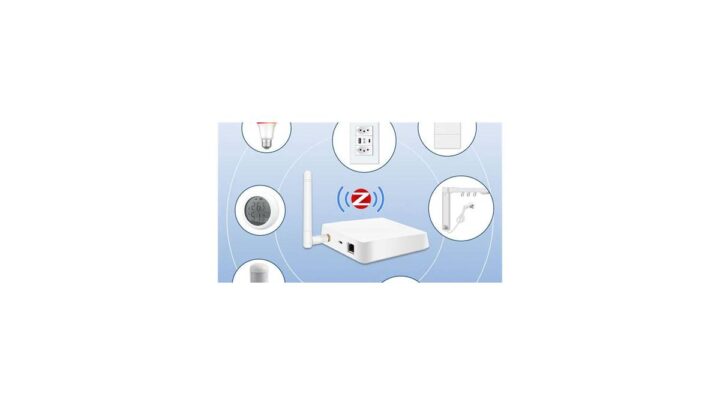
Zigbee plugs use a mesh protocol that also runs at 2.4 GHz, but they can't talk to your router directly. They need a hub or bridge. Some Amazon Echo devices have a Zigbee hub built in (Echo Plus, Echo Show 10, and the 4th-gen Echo), so those can act as the go-between.
If you have a plain Echo Dot, you'll need an external Zigbee hub like a Samsung SmartThings Hub or a Philips Hue Bridge. Rule of thumb: if the plug came with a hub in the box, use it. If it didn't, check whether your Echo has the built-in Zigbee radio first.
Matter-Certified Plugs: The New Shortcut
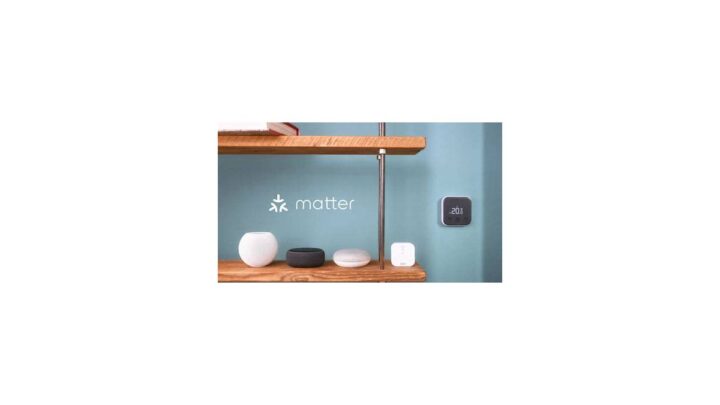
Matter is a cross-ecosystem standard backed by the Connectivity Standards Alliance. As of 2026, Matter-certified plugs are the easiest of the lot to connect to Alexa because they skip the vendor app entirely.
You scan a QR code from the plug's label or box, and Alexa pairs it directly. No brand Skill, no account linking, no third-party app. If you're buying a new plug today, Matter support is the feature worth paying a couple of extra dollars for.
Bluetooth-Only Plugs and Why They're Different
Some cheap plugs advertise "Bluetooth setup" or "Bluetooth control." That usually means Bluetooth is only used during initial pairing, and the plug still needs 2.4 GHz Wi-Fi for daily use. A handful of truly Bluetooth-only plugs exist, but they have limited range and won't stay reliable for Alexa routines.
If your plug's box says "Bluetooth only" or "no Wi-Fi required," be aware that Alexa support is often partial or requires the phone to stay nearby. Read the vendor's Alexa compatibility note carefully.
The 2.4 GHz Rule: The Single Most Common Setup Killer
Here's the truth that catches more people than any other issue: your phone has to be on the 2.4 GHz Wi-Fi band when you pair a standard Wi-Fi smart plug. If it's sitting on 5 GHz, the vendor app can't find the plug, and nothing else you do will matter.
The reason is simple. Nearly all Wi-Fi smart plugs use the 802.11 b/g/n radio, which only runs on 2.4 GHz. Newer 5 GHz and Wi-Fi 6E/7 networks won't broadcast on that band unless your router has it enabled separately.
Your Echo, by contrast, handles both bands fine, which is why the mismatch is easy to miss.
How to Check If Your Phone Is on 2.4 GHz
On iPhone, go to Settings → Wi-Fi and tap the network you're on. Scroll down to find "IP Address" and note the router address. Cross-reference that against your router's admin page (usually 192.168.1.1 or 192.168.0.1) to see which band the network name is broadcasting on.
On Android, the process is similar but slightly buried. Use a free Wi-Fi analyzer app to see the band directly. If your network name ends in "-5G" or "-5GHz," that's a strong clue you're on the wrong side.
What to Do If Your Router Combines Both Bands
Many modern routers use "band steering," which broadcasts one SSID for both 2.4 GHz and 5 GHz and quietly pushes devices to whichever is stronger. That's great for phones and laptops, and terrible for smart plug setup.
The fix is to log into your router admin page and split the bands into two separate network names. Call the 2.4 GHz one something like "Home-2G" and the 5 GHz one "Home-5G." Then, during plug setup only, connect your phone to the 2.4 GHz network.
Mesh Wi-Fi Systems (Eero, Nest Wifi, Deco) and What Changes
Mesh systems add a wrinkle. Eero, Google Nest Wifi, and TP-Link Deco systems often hide the 2.4 GHz band entirely by default. Some let you split bands from the app.
Others don't.
If yours doesn't, temporary workarounds include: moving far enough from a mesh node that your phone falls back to 2.4 GHz, using the mesh app's "temporary 2.4 GHz network" feature (Eero has this), or setting up the plug at the edge of your coverage. Aggregated reports across these mesh ecosystems show the Eero temp network trick resolves the majority of stuck setups.
Step-by-Step: Connecting a Standard Wi-Fi Smart Plug to Alexa
This is the process for a regular Wi-Fi plug from a brand like TP-Link Kasa, Wyze, Govee, Wemo, or Meross. Matter and Zigbee plugs get their own sections right after this. Read the whole thing first, then run through it in one sitting.
Step 1: Set Up the Plug in Its Vendor App First
Download the manufacturer's app (Kasa, Wyze, Govee Home, Wemo, Meross, and so on), create an account, and log in. Plug the smart plug into a wall outlet and wait for the LED to blink, which means it's in pairing mode.
Tap Add Device inside the app and follow the prompts. When it asks for your Wi-Fi network, choose your 2.4 GHz network and enter the password. The app will push those credentials to the plug over Bluetooth or a temporary hotspot.
Wait for confirmation before moving on. If the plug never connects here, it will never connect in Alexa either. This step is the foundation.
Step 2: Enable the Alexa Skill for That Brand
Open the Alexa app and tap More in the bottom-right corner. Then go to Skills & Games, search for your plug's brand name, and tap Enable to Use.
Some brands walk you through account linking at this point. You'll log in with the same vendor account you just created. Once you see "Successfully linked," the Skill is active.
If your brand doesn't have an Alexa Skill, that's a red flag. Either the plug isn't Alexa-compatible, or it needs Matter pairing instead. Check the box.
Step 3: Link Your Vendor Account to Alexa
If the Skill didn't link your account automatically, you'll need to do it manually. In the Alexa app, go to More → Skills & Games → Your Skills → find the brand → tap Link Account.
Enter the same email and password you use for the vendor app. Alexa will pull your device list from the vendor's cloud. This is why you must set up the plug in the vendor app first.
Step 4: Run Device Discovery in the Alexa App
Now go to Devices in the Alexa app, tap the Plus icon in the top-right corner, and choose Add Device. You'll see a category list. Pick Plug if your brand is listed, or Other if it's not.
The app runs a discovery scan that usually takes 15 to 45 seconds. If your Skill was enabled and account linked correctly, your new plug will show up as a card on the screen. Tap it to add.
Step 5: Assign a Room and Rename the Plug
Alexa will prompt you to assign the plug to a room (Living Room, Bedroom, Kitchen, etc.). Pick the right one. This matters for grouped commands like "Alexa, turn off the living room lights."
Now rename the device. "Smart Plug 1" is not a good name because you'll forget what it controls. Name it after the appliance: "Coffee Maker," "Christmas Tree," "Desk Lamp," or "Pet Feeder."
Skip step 5 at your peril. Renaming later breaks any routines that reference the old name, and you'll have to rebuild them from scratch.
Step 6: Test with a Voice Command
Say: "Alexa, turn on [the name you just gave it]." If the LED on the plug flips and the appliance powers up, you're done. If Alexa says "I couldn't find a device named [name]," wait 30 seconds and try again. Discovery can lag a bit.
If it still fails, go back to Devices and confirm the plug shows as "Online." An offline device means the Wi-Fi connection dropped, not that Alexa failed.
For a wider view of how smart plugs slot into a broader home setup, the smart home category has related guides on hubs, sensors, and voice control. If you're automating something like a morning coffee routine, our review of popular drip brewers pairs well with a scheduled plug. For smaller kitchen counter setups, the Hamilton Beach roundup is worth a look too.
Step-by-Step: Connecting a Matter Smart Plug to Alexa
Matter changes the whole workflow. There's no vendor Skill, no account linking, and no manufacturer app required for basic Alexa control. You pair the plug straight into Alexa like a native device.
The whole process usually finishes in under two minutes.
The reason is architectural. Matter runs over Wi-Fi, Thread, or Ethernet, and it uses a shared device model that every ecosystem understands. Amazon built direct support into the Alexa app, so Alexa becomes the controller instead of the vendor's cloud.
Step 1: Power the Plug and Confirm Bluetooth Is On
Plug the Matter device into a wall outlet near your Echo. Turn Bluetooth on your phone. Matter uses Bluetooth Low Energy for the initial handshake, then switches to Wi-Fi or Thread for daily operation.
If you're pairing a Thread-based plug, you also need a Thread border router in the home. Some Echo devices act as Thread border routers (Echo Hub, Echo Show 8 4th gen, Echo 4th gen). Without one, a Thread plug won't reach the network.
Step 2: Open Alexa, Tap Add Device, Choose Matter
In the Alexa app, tap Devices, then the Plus icon, then Add Device. Scroll down and pick Matter. The app will prompt you to scan the QR code.
Matter QR codes live on the plug itself, on the box, or on a small card inside the packaging. Save that code. Some plugs also print a manual pairing code you can type if the camera won't cooperate.
Step 3: Scan the QR Code and Wait for Pairing
Point your phone camera at the QR code. Alexa reads it, spins up a commissioning session, and pushes Wi-Fi credentials through the plug via Bluetooth. Give it 30 to 90 seconds.
You'll see a progress indicator in the app. When it flips to green, tap Done and assign a room. The plug is now live in Alexa without ever touching a vendor app.
Step 4: Rename and Test
Same rules as before. Name it after what it controls, not "Plug 1." Then say "Alexa, turn on [name]" and watch the LED. Matter pairing is fast, but occasionally the first command lags by a few seconds while Alexa finishes registering the device.
What About Firmware Updates on Matter Plugs?
Matter plugs still receive firmware updates, but the update path depends on the brand. Some push updates through Alexa automatically. Others require a quick visit to the vendor app just for updates.
Read your plug's documentation if you want to know which path yours uses.
For a plug that fits into a broader cross-ecosystem home, Matter is the safest long-term pick. You can move it between Alexa, Google Home, and Apple Home without re-pairing wirelessly, which is a big deal if you switch assistants later.
Step-by-Step: Connecting a Zigbee Plug to an Echo with a Built-In Hub
Zigbee is the older mesh protocol, but it's still common in plugs from Philips Hue, Sengled, and Aqara. Pairing is different again. You don't need Wi-Fi credentials for the plug itself, because the Echo hub handles the connection.
Check your Echo first. The 4th-gen Echo, Echo Plus, Echo Show 10, and Echo Hub all have a built-in Zigbee radio. A standard Echo Dot does not.
If you're on a Dot, you'll need a separate Zigbee hub like a SmartThings Hub or Hue Bridge.
Step 1: Put the Zigbee Plug into Pairing Mode
Hold the plug's button until the LED pulses (usually a slow blue or green blink). Zigbee pairing windows typically stay open for 60 to 180 seconds. Don't drag your feet here.
Step 2: Open Alexa and Run Add Device
In the Alexa app, tap Devices → Plus → Add Device → Other. If your Echo has the built-in hub, Alexa will automatically scan the Zigbee network. Newly paired plugs pop up without any further setup.
If nothing shows, say "Alexa, discover devices" out loud. That voice command triggers the same scan and sometimes finishes faster.
Step 3: Confirm the Connection and Rename
Tap the plug in the device list, assign it to a room, and rename it. Zigbee plugs usually appear with generic names like "Sengled Element" or "Hue Plug," so a rename is essential if you plan to use voice commands daily.
The trade-off with Zigbee is range. Each Zigbee plug acts as a mesh repeater, so the more you add, the stronger the network. That's a real advantage over Wi-Fi plugs in larger homes.
Which Setup Path Applies to You? A Decision Table
Setup paths split cleanly by plug type. Find your row, then follow only that path. Skipping ahead to the Alexa app before finishing the vendor-specific step is the number-one reason people get stuck.
| Plug Type | Do You Need a Vendor App? | Do You Need a Skill? | Pairing Method | Typical Setup Time |
|---|---|---|---|---|
| Wi-Fi (Kasa, Wyze, Govee, Meross) | Yes, for initial setup | Yes, brand-specific | Vendor app, then Alexa discovery | 5 to 10 minutes |
| Matter over Wi-Fi | No | No | QR code scan in Alexa app | 1 to 3 minutes |
| Matter over Thread | No | No | QR code + Thread border router | 2 to 5 minutes |
| Zigbee (with Echo hub) | Usually no | No | Echo hub scans Zigbee network | 2 to 5 minutes |
| Zigbee (with external hub) | Yes, for the hub | Maybe, hub-specific | Hub app, then Alexa discovery | 5 to 12 minutes |
| Bluetooth-only | Yes | Sometimes | Vendor app, limited Alexa support | Varies |
If your plug isn't on this table, check the packaging for a Matter logo or the brand's Alexa compatibility page. Anything claiming Alexa support should list at least one of these paths.
One quick tiebreaker: if you own an Echo Dot and a Zigbee plug, you'll need a hub. If you own an Echo 4th gen or Echo Hub and a Zigbee plug, you're already set. If you're buying new, Matter skips both headaches.
Troubleshooting: Matching Your Symptom to the Right Fix
Alexa errors sound similar but mean different things. The fix depends on which leg of the handshake broke. Match your symptom to the section below and only run the steps for that path.
"No New Devices Found" During Discovery
This means the handshake never started. The plug either isn't in pairing mode, isn't on the same network as your Echo, or the Skill isn't enabled. Check the plug's LED first.
Solid usually means connected to Wi-Fi but not yet discovered. Blinking means still pairing.
Next, confirm your phone and Echo are on the same Wi-Fi network. Then open the Alexa app, re-enable the Skill, and re-link the vendor account. Run discovery again.
This clears the issue in most cases.
Plug Shows Up but Alexa Says "Device Is Unresponsive"
This is a cloud or network problem, not a pairing failure. The plug is registered with Alexa but Alexa can't talk to it right now. Common causes: Wi-Fi signal dropped at the outlet, router rebooted and the plug didn't reconnect, or the vendor's cloud is having an outage.
Try the plug's physical button first. If it responds locally but not via voice, you've confirmed a network issue. Reboot the plug by unplugging it for 10 seconds, then check the vendor app to see if the device shows as online.
Plug Keeps Dropping Offline After Setup
Random dropouts almost always trace to weak Wi-Fi at that outlet location. Smart plugs sitting in a corner, behind furniture, or on a far wall get a weak signal even if your phone shows full bars.
The fix is either moving the plug closer to your router, adding a mesh node near that room, or switching to a Zigbee or Thread plug that relies on a mesh instead of direct Wi-Fi. Matter over Thread is a good long-term answer for problem outlets.
Voice Commands Work Sometimes but Not Always
Intermittent voice failures usually mean name confusion. If you named the plug "Lamp" and you also have a smart bulb called "Lamp," Alexa can't tell which one you mean. Rename one of them.
The other common cause is a device that's technically online but slow to respond. Wi-Fi plugs have a 1 to 3 second lag on their best day. If Alexa times out before the plug responds, the command fails even though the plug would have worked.
Everything Broke After a Router or Wi-Fi Password Change
This is the most common mass-failure event in smart homes. When you change your router or Wi-Fi password, every Wi-Fi plug loses its connection and needs re-pairing. Zigbee and Thread plugs usually survive because they don't rely on your Wi-Fi credentials.
For Wi-Fi plugs, the fix is to reopen the vendor app, re-run setup for each plug, and re-enter the new Wi-Fi credentials. Alexa usually rediscovers them automatically once the vendor app reconnects. If you don't have a list of every plug and its room assignment, take five minutes to write one after you fix them.
For ongoing home tech upkeep, our kitchen and home section covers related maintenance topics and appliance care. If you're also setting up outdoor gear that runs on Wi-Fi or Bluetooth, the outdoors and garden category is worth a browse, and the camping gear section has more on connected outdoor tech. When sorting out seasonal outdoor gear, this guide to the best camping essentials also helps.
Common Mistakes That Break Alexa Smart Plug Setup
Most failed setups come from the same handful of missteps. Read this list before your next attempt and skip a whole evening of frustration.
- Skipping the vendor app. Wi-Fi plugs almost always need setup in the manufacturer app first. Alexa pulls the device from the vendor's cloud, not the other way around.
- Testing on 5 GHz. If your phone is on the 5 GHz band during pairing, the plug won't appear. Confirm 2.4 GHz before you tap Add Device.
- Naming plugs before assigning rooms. Rooms are what Alexa uses for grouped commands. Name and room go together.
- Buying plugs without checking the box. "Smart Wi-Fi plug" on a listing doesn't guarantee Alexa support. Look for the Works with Alexa or Matter badge.
- Ignoring the firmware update prompt. New plugs often ship with outdated firmware. Update via the vendor app before pairing.
- Using power strips with smart plugs. Daisy-chaining smart plugs into power strips can overheat the strip and trip safety ratings. Plug them directly into the wall.
- Renaming devices after building routines. Routines reference the old name and quietly stop working. Rename first, then build routines.
- Forgetting the Wi-Fi password. Sounds obvious, but typing the wrong password during setup is a top support-forum complaint. Copy and paste it from your phone's Wi-Fi settings if you're not sure.
- Assuming two identical plugs share a name. They don't. Each has its own device ID. Two plugs in the same room will still need distinct names.
- Ignoring LED color codes. Blinking red, solid blue, and slow amber each mean something specific. Check your plug's manual before guessing.
Alexa Routines, Groups, and Voice Naming: Getting More Out of Your Plug
Once a plug is connected, routines and groups are where the real value shows up. A single smart plug on a schedule saves more energy than most people expect. A group of plugs on one command turns your living room into a scene with two words.
Start with naming. Alexa handles short, obvious names best. "Lamp," "Ficus," and "Kettle" work.
"Living Room Corner Floor Lamp Three" does not. Alexa will mishear long names, and you'll end up repeating yourself.
What's the Difference Between a Group and a Routine?
A group is a collection of devices you control together in real time. A routine is a set of actions that fire automatically based on a trigger. Groups are for manual commands.
Routines are for scheduled or sensor-driven automation.
For example, put three lamps in a group called "Den." Saying "Alexa, turn on the Den" flips all three at once. Then build a routine that turns the same group off at 11 p.m. every night. The group handles the command.
The routine handles the timing.
How Do You Build a Basic Alexa Routine?
Open the Alexa app → More → Routines → Plus icon. Choose a trigger (schedule, sunrise, sunset, voice phrase, or a device event like motion). Then choose an action (turn on the plug, set brightness, play music).
Give the routine a name and save it.
A common starter routine: "Sunset Lights." Trigger at sunset, action is turn on the porch plug. If you have a porch light on a smart plug with an outdoor rating, this routine handles dusk-to-dawn lighting without a timer dial.
Can One Voice Command Control Multiple Plugs?
Yes, if they live in the same group. Alexa treats groups as first-class devices, so "Alexa, turn off the Kitchen" works whether the Kitchen group has one plug or three. Without a group, you'd need a routine or a custom phrase like a "Scene."
What About Alexa Hunches and Adaptive Automation?
Alexa Hunches use your habits to suggest automations. If you always turn off the living room lamp around 10 p.m., Alexa may offer to automate it. Accept the suggestion or ignore it.
As of 2026, Hunches cover lights, plugs, and a handful of other device types.
For a wider view of how these pieces combine, our section on kitchen and home technology covers related setups. If your smart plug is running something like a coffeemaker, the coffee maker category pairs nicely with a scheduled routine.
Everyday Setups That Actually Work: Lights, Coffee Makers, Heaters, and Holiday Displays
The best smart plug setups do one job, do it every day, and don't demand your attention. Here are the configurations that verified buyer feedback and smart-home community reports keep flagging as the ones people actually stick with.
Lamps and Floor Lights
The most common and the easiest. Plug a table lamp or floor lamp into the smart plug, name the plug after the lamp, and build a sunset-on routine. If the lamp has a physical switch, leave it in the "on" position permanently.
The plug handles the on/off.
Coffee Makers
A scheduled coffee maker is the second most popular smart plug use case. Most drip brewers with a mechanical on/off switch work fine. The ones that don't work: brewers with digital displays that need a button press, and machines that reset to standby when power cuts.
Set the routine for 15 minutes before your alarm, and your kitchen smells like coffee when you walk in.
If you're pairing a plug with a new machine, the Hamilton Beach coffee maker roundup points out which models play nice with a scheduled outlet. For a broader look at which brewers work best with smart plugs, our guide to top drip coffee makers has more.
Space Heaters (With Big Caveats)
Space heaters on smart plugs are a genuine risk. Many heaters pull 12 to 15 amps, which sits right at the top of a standard plug's rating. Some smart plugs are labeled for 15A/1800W, some at 10A/1200W.
Match the plug's rating to the heater's draw, or skip this setup entirely.
Even when the numbers line up, a heater that runs while you're asleep or away is a fire risk. Per the U.S. Consumer Product Safety Commission, space heaters are involved in roughly 1,700 residential fires annually in the US.
If you want to automate heating, use a dedicated smart thermostat, not a plug.
Holiday Lights and Christmas Trees
Seasonal lighting is where smart plugs shine. Plug the tree or the outdoor light string into a smart plug, set a routine for 6 p.m. to 11 p.m., and you never touch a physical switch again. Outdoor runs need an IP-rated plug (IP44 minimum).
Aquarium Lights and Pet Feeders
Slow, low-draw devices are safe on smart plugs. Aquarium lights on a sunrise-to-sunset routine mimic natural cycles and reduce algae blooms. Automatic pet feeders on a routine keep meals on time when you're running late.
Fans and Air Purifiers
These are common, low-risk loads. Just don't use a smart plug on a device that needs to run continuously for health reasons (like a medical device or a CPAP). If powering it off by accident poses any risk, keep it off the plug.
Safe Load Limits: What You Should Never Plug Into a Smart Plug
Safety is the one place in this whole article where shortcuts aren't worth it. Smart plugs have fixed amperage limits, and exceeding them doesn't just trip a breaker. It can melt the plug housing and start a fire.
Know Your Plug's Rating
Check the label on the plug itself. You'll see one of these ratings:
| Rating | Max Load (US, 120V) | Max Load (UK/EU, 230V) | Typical Safe Uses |
|---|---|---|---|
| 10A | 1200W | 2300W | Lamps, fans, chargers, small appliances |
| 13A | 1560W | 3000W | Most household appliances |
| 15A | 1800W | 3450W | Larger appliances, some heaters |
If your appliance's wattage is anywhere near that number, add a safety margin. Running at 80 percent of the max rating is safer than running right at the limit.
Appliances You Should Never Put on a Smart Plug
- Space heaters above the plug's wattage rating
- Electric kettles (2,000W to 3,000W pulls)
- Microwaves
- Toasters and toaster ovens
- Hair dryers
- Electric irons (even if the wattage fits, the heat risk is real)
- Anything with a heating element that stays hot after power cuts
- Medical devices
- Power strips daisy-chained into the plug
- Extension cords feeding multiple devices
Why Daisy-Chaining Is Dangerous
Plugging a power strip into a smart plug and then loading that strip with multiple devices multiplies the amperage load and stacks connections, which raises resistance and heat. The smart plug might be rated for the current, but the strip isn't likely rated for the same draw with multiple devices on it. Keep it one plug, one appliance.
Water and Outdoor Use
Outdoor smart plugs carry an IP rating. IP44 handles splashes. IP65 handles spray.
Neither one survives being submerged. If your outdoor plug sits in a spot where rain pools, no IP rating saves you. Mount it under a cover and angle the outlet downward.
Look for the Safety Marks
In the US, look for UL or ETL listing on the plug. In the UK and EU, look for CE or UKCA. A plug that skips these certifications is a genuine risk.
Uncertified electrical devices are a recurring source of residential fires, and cheap no-name plugs are a frequent offender, per the U.S. Consumer Product Safety Commission.
Maintenance and Long-Term Optimization: Keeping Plugs Reliable
Smart plugs aren't set-and-forget forever. They drift, drop, and occasionally need a nudge. A little routine care keeps them reliable for years.
Update firmware at least twice a year. Most vendors push updates through their app silently, but you can force a check. Open the vendor app, tap the plug, and look for a firmware version field.
If it's out of date, run the update while the plug is idle.
Re-check your Wi-Fi connection after any router change. Even a firmware update to your router can reshuffle how it assigns IP addresses. If your plugs suddenly stop responding, that's usually the cause.
How Often Should You Reboot a Smart Plug?
Once a month is plenty for most homes. Unplug it for 10 seconds, then plug it back in. This clears minor memory issues and forces a fresh network handshake.
If you have to reboot more often than that, something else is wrong. Weak signal, outdated firmware, or a dying plug are the usual suspects.
Do Smart Plugs Wear Out?
Yes, though slowly. The internal relay that physically opens and closes the circuit has a cycle limit. Most consumer plugs are rated for 100,000 switches or more.
At two cycles a day, that's over 130 years of use. Realistic wear comes from heat and dust, not cycles.
Keep plugs away from dusty areas when possible. A vacuum's exhaust, a kitchen's grease layer, and a workshop's sawdust all shorten the lifespan. Wipe the housing occasionally with a dry cloth.
Never use a wet cloth on a plugged-in device.
What About an Annual Reset?
Once a year, do a full reset cycle. Remove the plug from Alexa, re-pair it in the vendor app, then re-add it through discovery. This clears any cumulative connection quirks and confirms the plug still works with the current version of the vendor app and Alexa firmware.
It sounds like overkill. It isn't, especially if you've noticed occasional "device is unresponsive" errors that clear on their own. A clean re-pair resets the underlying session state.
Choosing a Smart Plug That Plays Nice With Alexa
If you're buying new, the choice gets a lot easier. Three criteria matter: protocol, safety certification, and whether the voice control flow is native or cloud-dependent. Everything else is secondary.
What's the Best Protocol for Alexa in 2026?
Matter is the safest long-term bet. It connects directly to Alexa, doesn't need a vendor Skill, and works across Google Home and Apple Home if you ever switch. Matter over Thread is even better for outlets with weak Wi-Fi, but it needs a Thread border router in the home.
Wi-Fi plugs are still the most common and cheapest. They work fine as long as your 2.4 GHz network is solid and you don't mind the vendor app. Zigbee plugs are worth it if you already own an Echo with a built-in hub or a SmartThings setup.
Here's the honest comparison:
| Priority | Best Choice | Why |
|---|---|---|
| Simplest setup | Matter over Wi-Fi | QR code, no Skill, no vendor app |
| Best for weak Wi-Fi outlets | Matter over Thread | Mesh network, self-healing |
| Lowest cost | Wi-Fi (Kasa, Wyze) | $8 to $15 per plug |
| Best if you already have Zigbee | Zigbee plug | Uses existing Echo hub |
| Best for cross-ecosystem homes | Matter (any transport) | Same pairing wherever you go |
What Safety Marks Should I Look For?
UL or ETL listing for US buyers. CE or UKCA for UK and EU. Never skip this check.
Uncertified plugs have a documented fire risk, and the savings from a no-name brand aren't worth the downside.
Look for the mark on the plug housing itself, not just the box. Counterfeit listings have been known to print UL logos on unlisted devices. If the price is dramatically below the market average, that's a red flag.
Does the Plug Matter If I Already Have Alexa Devices Everywhere?
Yes, and the reason is local control. A Wi-Fi plug throttled through a vendor cloud goes down when your internet goes down. A Matter-over-Thread plug with a local Thread border router keeps working during an ISP outage, because the command never leaves your home.
If you're building a small apartment setup and want the whole ecosystem to play nice, our guide to apartment-friendly smart devices walks through which combination of hubs, plugs, and bulbs keeps things simple.
How Much Should a Smart Plug Cost?
Between $8 and $30 per plug is the standard range in the US as of 2026. Budget Wi-Fi plugs sit at the low end. Matter plugs and outdoor-rated plugs sit at the high end.
Energy-monitoring plugs (which report live wattage) run $20 to $35.
Anything under $6 is a warning sign. You're likely buying an uncertified device with a short lifespan and questionable safety testing. The few dollars saved aren't worth the risk.
Real Scenarios: How Readers Actually Use Alexa Smart Plugs
These are the setups that show up again and again in verified buyer feedback and support communities. If your situation looks like one of them, start there.
The Renter Setup
A renter can't rewire switches or install in-wall smart devices. Smart plugs are the perfect workaround. Plug in three lamps across the apartment, name them individually, and group them under "Apartment Lights." Add a Matter plug for the coffee maker, and you've got a voice-controlled home without touching a single wall.
For renters, budget three to five plugs and one Echo Dot. Total outlay sits under $100 for a decent setup.
The Holiday Display Setup
For October through December, smart plugs turn holiday decorating into a set-it-and-forget-it operation. Indoor plugs for the tree and window decorations. Outdoor-rated plugs for the porch and yard lights.
One group command or a single sunset routine handles the entire display.
The biggest tip: label every plug. Come January, you'll have no idea which plug controlled which string otherwise.
The Home Office Setup
A desk lamp, a monitor light strip, and a coffee warmer on three plugs. Group them under "Office." A voice command or a morning routine brings the whole setup online when you sit down. An evening routine shuts it all down at the end of the day.
This is one of the safest smart plug applications because all the loads are small. Total draw rarely exceeds 300 watts across three plugs.
The Accessibility Setup
For users with limited mobility, voice-controlled plugs are a real quality-of-life improvement. Lamps, fans, and small appliances become reachable without getting up. Alexa routines supplement the voice commands with time-of-day triggers for users who might forget.
If you're setting this up for someone else, use simple names and keep the app on a shared Amazon account. Frustration with a complicated setup defeats the purpose.
The Pet Care Setup
Automated feeders, aquarium lights on a natural cycle, and small space heaters for reptiles all fit on smart plugs. The reptile heater is the one to handle carefully. Match the heater's wattage to the plug's rating, and don't put a high-draw heat lamp on a plug that's rated too low.
For external pet gear that stays outdoors, the outdoor and garden category has related ideas. If you're also setting up connected gear on trips, our camping equipment guide covers portable connected devices that pair with the same phone app.
Advanced Tips: Local Control, Matter, and Voice Shortcuts
Once the basics are solid, a few upgrades turn a functioning setup into one that feels genuinely smart. These are the tips most users never discover.
What Is Wi-Fi Simple Setup and Should I Use It?
Amazon's Wi-Fi Simple Setup (sometimes called Frustration-Free Setup) eliminates most pairing steps for supported devices. When you buy an FFS-enabled plug and link your Amazon account during checkout, Alexa pre-configures the device before it ships. Plug it in at home, and Alexa finds it within a minute.
It works with a limited but growing list of brands. If your plug supports it, use it. If it doesn't, the standard setup path is fine.
Can I Keep Smart Plugs Working Without the Internet?
Yes, but only with Matter over Thread and a local Thread border router. Alexa's local routines (a subset of routines that don't require cloud triggers) can still fire during an internet outage for Thread devices. Standard Wi-Fi plugs go dark when the internet drops.
If you rely on a plug for something mission-critical, Thread is the only path that keeps local control alive. Wi-Fi plugs are the wrong choice.
Voice Shortcuts You'll Actually Use
- "Alexa, goodnight" → triggers an evening routine that turns off all lamps
- "Alexa, movie time" → group command that dims living room plugs and turns on the TV lamp
- "Alexa, I'm leaving" → away routine that turns off every plug in the house
- "Alexa, morning coffee" → single command to start the coffeemaker on the kitchen plug
Set these up as Routines with custom voice phrases. Each one takes about 90 seconds to build. The payoff is worth it.
What About Alexa Hunches and Motion Triggers?
Hunches learn your habits and offer to automate. Motion triggers fire a plug when a sensor detects activity. Both are easy wins for plugs on lamps in hallways, bathrooms, or entryways.
A motion-triggered hallway light beats a scheduled one if your schedule is irregular.
Keep the count low. Too many automatic triggers make a home feel unpredictable. Two or three well-chosen hunches do more than twenty half-baked ones.
Can I Integrate Plugs With IFTTT or Home Assistant?
Yes. IFTTT adds cross-service triggers (weather, email, calendar) that Alexa alone can't reach. Home Assistant exposes plugs through a local hub for users who want full offline control and richer automations.
Both add complexity. Neither is required for basic use.
If you're deep into a DIY smart home, Home Assistant is worth the learning curve. If you're not, skip it. Alexa routines cover most of what most people actually need.
Frequently Asked Questions
How long does it take to connect a smart plug to Alexa?
Most Wi-Fi plugs take 5 to 10 minutes from unboxing to first voice command. Matter plugs are faster at 1 to 3 minutes. Zigbee plugs with an existing hub take 2 to 5 minutes.
The longest delays come from Wi-Fi band issues or account-linking mishaps, which can add 10 to 20 minutes.
Do I need a hub to connect a smart plug to Alexa?
No, not for Wi-Fi or Matter plugs. Wi-Fi plugs connect directly to your router. Matter plugs connect directly to Alexa.
Zigbee plugs do need a hub, but some Echo devices (Echo Plus, Echo Show 10, Echo Hub, Echo 4th gen) have a Zigbee radio built in, so no external hub is required.
Why does Alexa keep saying my smart plug is unresponsive?
That phrase means the plug dropped off the network. Weak Wi-Fi signal at the outlet is the usual cause. Reboot the plug by unplugging it for 10 seconds.
If it disconnects again within a day, move it closer to your router or switch to a Zigbee or Thread plug that runs on mesh.
Can I connect a smart plug to Alexa without the manufacturer's app?
Yes, if the plug is Matter-certified. Matter plugs pair straight into Alexa via QR code with no vendor app and no Skill. For Wi-Fi plugs that aren't Matter, you do need the vendor app for the initial setup, because Alexa pulls device data from the manufacturer's cloud.
Will my smart plug still work if the Wi-Fi goes down?
Local control still works for some plugs, but Alexa voice commands won't. That's because Alexa routes most commands through the internet, even for devices in your home. Matter over Thread is a partial exception.
Its local control can survive an internet outage if your Thread border router stays up.
What happens to my routines if I rename a plug?
Routines that reference the old name break silently. They'll show as active in the Alexa app but won't fire because the device they point to no longer exists under that name. Rename the plug first.
Then open each routine and update the device reference.
Final Decision Guide: Pick Your Path and Get It Done
You've got everything you need. Now pick the path that matches your situation and run it end to end.
If you own a Wi-Fi plug from a major brand like TP-Link Kasa, Wyze, Govee, Wemo, or Meross, follow the vendor app plus Skill plus discovery path. Confirm your phone is on 2.4 GHz before you start. Budget 10 minutes for the first plug and 3 minutes for every one after that.
If you own a Matter plug, skip the vendor app. Open Alexa, tap Add Device, choose Matter, and scan the QR code. Two minutes, done.
As of 2026, Matter is the path worth recommending for anyone buying new.
If you own a Zigbee plug, check your Echo first. If it has a built-in Zigbee radio, you're already set. If it's a standard Dot, you'll need a hub.
Once the hub is in place, pairing takes under 5 minutes per plug.
If you're troubleshooting a plug that used to work, run the symptom-to-fix table earlier in this article. Discovery failures are a pairing problem. Unresponsive messages are a network problem.
Random dropouts are a signal problem. Match the symptom, run the fix, move on.
If safety is your concern, remember: 10A plugs for lamps and small devices, 13A or 15A plugs for anything bigger, and no space heaters or high-draw appliances on a plug unless the numbers are matched and the plug is UL or ETL listed. When in doubt, don't plug it in.
One last thing. Write down every plug's name, room, and vendor account after setup. That single habit saves you an entire evening the next time you change your router or Wi-Fi password.
Almost nobody does it. Almost everybody wishes they had.

Similar Posts