How Does a Smart Home Work? Simple Guide to Smart Living
If you've ever stood in your kitchen staring at a smart bulb that refuses to connect, you've already bumped into the real question: how does a smart home work? The short answer is that it's not one system but several layers stacked on top of each other. You've got devices, a wireless protocol, a hub or bridge, and a controller app that ties everything together.
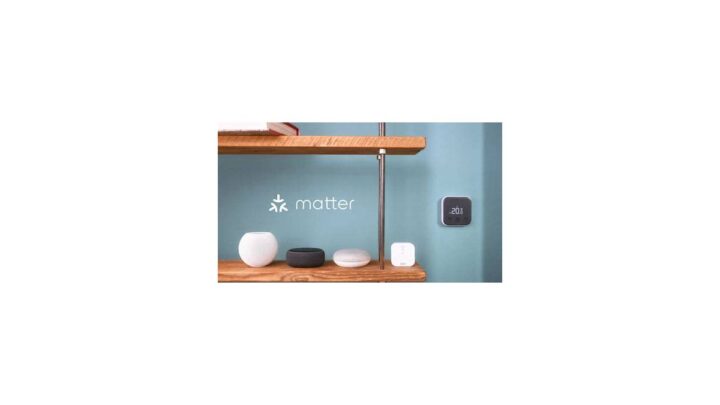
The tricky part is that each layer has its own rules. The Connectivity Standards Alliance (CSA) built the Matter standard to fix some of this. But as of 2026, Matter still only covers a slice of what a modern smart home can do.
So let's walk through the whole thing, layer by layer, branch by branch.
how does a smart home work
A smart home works by connecting devices to a network using a wireless protocol. Each device sends data to a hub, bridge, or cloud service. That data gets processed by rules you set.
Then your app or voice assistant sends commands back to the devices. For example, a motion sensor detects movement, the hub triggers a light, and your phone shows the event.
The Real Problem: Why "Smart" Devices Often Refuse to Talk to Each Other
Here's the frustration nobody warns you about. You buy a smart bulb from one brand and a smart plug from another. Both boxes say "works with Alexa." You set them up, and suddenly your routines only half work.
The bulb responds to voice commands but won't trigger from the motion sensor. The plug runs on its own app but won't show up in your dashboard.
That's not a bug. That's the architecture.
Most smart devices don't talk to each other directly. They each talk to their own app, their own cloud, or their own hub. If two devices don't share a common language, they can't coordinate.
This is why "works with Alexa" often just means "Alexa can send it a basic command." It doesn't mean the device plays nicely with everything else you own.
The good news is that the industry has been shifting. The Matter standard, launched in 2022, is an attempt to make devices from different brands actually cooperate. But adoption is uneven.
Some brands ship full Matter support. Others ship partial support and quietly skip the features that matter most, like local control or multi-admin sharing.
So the real question isn't "does this device work?" It's "does this device work the way I need it to work?" That depends on three things: the protocol it uses, whether you have a hub, and whether you're running cloud or local control. Get those three right, and everything clicks. Get them wrong, and you end up with a drawer full of gadgets that only half function.
Read up on the broader landscape of home tech in our smart home category if you want to see how different setups compare.
The Quick Answer: Devices, Protocols, Hubs, Apps, and Where the Cloud Fits In
A smart home is basically four things stacked together. Miss one, and the whole system limps along.
The device is the physical thing: a bulb, plug, lock, thermostat, doorbell, sensor, or camera. It has a radio chip inside that lets it communicate. That radio chip determines which protocol it speaks, which is the second layer.
The protocol is how devices send and receive data. Common ones include Wi-Fi, Zigbee, Z-Wave, Thread, and Bluetooth Low Energy (BLE). Each one has different tradeoffs in range, power use, and reliability.
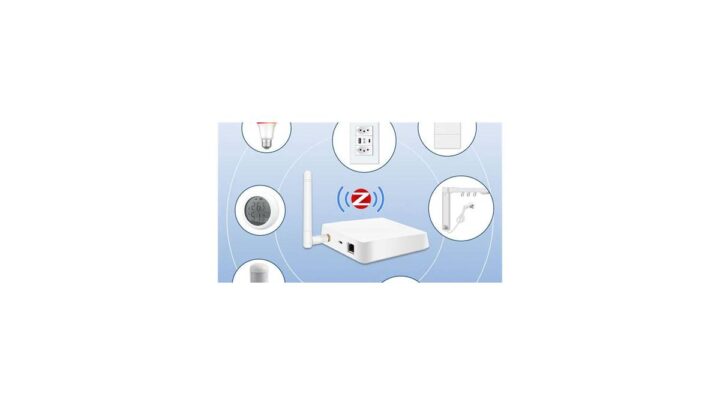
The hub or bridge is the translator. Some devices connect straight to your router (Wi-Fi). Others need a hub to relay their signals.
Hubs come in two flavors: dedicated hardware like Hubitat or SmartThings, or software like Home Assistant running on a small computer.
The controller is what you actually touch: an app on your phone, a voice assistant like Amazon Alexa or Google Assistant, or a wall panel. The controller sends commands and displays status.
Then there's the cloud. Most consumer smart homes still route commands through a manufacturer's server, even when the device is sitting ten feet away from you. That means if the internet drops, most of your "smart" home stops being smart.
| Layer | What It Does | Examples |
|---|---|---|
| Device | Sends and receives commands | Smart bulbs, locks, sensors, cameras |
| Protocol | The wireless language | Wi-Fi, Zigbee, Z-Wave, Thread, BLE |
| Hub or Bridge | Translates between protocols | Hubitat, SmartThings, Philips Hue Bridge |
| Controller | Your interface | Alexa app, Google Home, Apple Home |
| Cloud | Remote processing | Manufacturer servers, iCloud, Google Cloud |
If you want the simplest possible setup, Wi-Fi devices plus a voice assistant will get you 80% of the way. If you want reliability, local control, and room to grow, you'll need a hub and a mix of protocols. That's the fork in the road, and it's worth understanding before you buy anything else.
For renters and apartment dwellers specifically, the plug-and-play route makes more sense. Our breakdown of devices that fit small living spaces walks through what works without drilling holes or rewiring anything.
The Four Layers of Every Smart Home System
Every smart home, from a single bulb to a 60-device setup, runs on the same four-layer stack. Once you see it, you can't unsee it. And once you can name the layers, troubleshooting gets ten times easier.
Layer 1: The Device
The device is the endpoint. It's the thing that does the work: turning on a light, locking a door, reading temperature, or streaming video. Inside every smart device is a small radio chip, a microcontroller, and firmware that tells it what to do.
Some devices are "dumb endpoints" that only respond to commands. Others are "smart endpoints" that can trigger actions on their own. A motion sensor is a smart endpoint because it generates events.
A smart bulb is mostly a dumb endpoint because it waits for instructions.
The type of device determines what protocols it can use. Battery-powered sensors almost always use Zigbee, Z-Wave, or Thread because Wi-Fi drains batteries fast. Mains-powered devices like smart plugs often use Wi-Fi because it's simple and doesn't need a hub.
Layer 2: The Protocol (Wi-Fi, Zigbee, Z-Wave, Thread, Matter)
The protocol is the language devices speak. If two devices don't share a protocol, they can't talk directly. They need a translator, which is the hub.
- Wi-Fi: Fast, no hub needed, but clogs your router and eats battery. Best for mains-powered devices like cameras and plugs.
- Zigbee: Low power, mesh-capable, needs a hub. Popular in sensors, bulbs, and locks.
- Z-Wave: Similar to Zigbee but uses a different frequency (908 MHz in the US). Less interference, slightly better range through walls.
- Thread: Newer mesh protocol built for IoT. Low power, IP-native, and the backbone for Matter.
- BLE: Short range, low power. Used for pairing and proximity features, rarely for full automation.
- Matter: Not a protocol itself. It's an application layer that runs on top of Wi-Fi, Thread, or Ethernet.
Here's the part most people miss. Matter doesn't replace Wi-Fi or Thread. It sits above them.
A Matter device still uses one of those transports underneath. That's why a Matter bulb might use Thread while a Matter plug uses Wi-Fi.
Layer 3: The Hub or Bridge
A hub is the traffic cop. It receives signals from devices, translates them, and sends commands back. Without a hub, Zigbee and Z-Wave devices can't talk to your phone at all.
There are three kinds of hubs:
- Dedicated hubs: Standalone boxes like Hubitat Elevation or Samsung SmartThings. They run their own software and often support multiple protocols.
- Bridges: Single-brand translators like the Philips Hue Bridge. They only handle that brand's devices but do it reliably.
- Software hubs: Home Assistant running on a Raspberry Pi, mini PC, or NAS. Maximum flexibility, maximum tinkering.
Some voice assistants double as hubs. An Amazon Echo (4th gen or newer) has a built-in Zigbee and Thread radio, so it can act as a hub for compatible devices. Google Nest Hub (2nd gen) does the same for Thread.
Apple HomePod mini and HomePod (2nd gen) act as Thread border routers for Apple Home.
Layer 4: The App, Voice Assistant, and Cloud or Local Brain
This is where you live. The app is your dashboard, the voice assistant is your hands-free remote, and the cloud (or a local brain) is where the rules get processed.
Cloud-based systems send every command to a server somewhere. That's why your lights respond in half a second instead of instantly. It's also why everything dies when the internet goes out.
Local systems process rules on your hub. Home Assistant and Hubitat both do this well. Apple Home can run some automations locally through a HomePod or Apple TV.
The upside is speed and reliability. The downside is more setup work and a steeper learning curve.
A useful rule of thumb: if you want the simplest setup, go cloud. If you want the most reliable setup, go local. If you want both, use a hub that supports Matter and run as much as you can locally while keeping cloud features for things like remote access.
The First Branch: Do You Even Need a Hub?
This is the first real decision, and it changes everything downstream. If you only want a handful of Wi-Fi devices and voice control, skip the hub. If you want sensors, locks, and automations that actually fire when you're not home, you'll want one.
Here's the if/then logic:
- If you're setting up 1 to 5 devices and mostly want voice control and app toggles, then skip the hub. Wi-Fi devices plus Alexa or Google will cover you.
- If you want battery-powered sensors (motion, contact, leak, temperature), then you need a hub. These devices use Zigbee, Z-Wave, or Thread, and they need a translator.
- If you want automations that run without internet, then you need a local hub. Cloud-dependent setups fail when the internet drops.
- If you rent and can't install permanent fixtures, then a plug-and-play Wi-Fi setup or a small hub like the Aqara Hub works better.
- If you're building a long-term system with 20+ devices, then a multi-protocol hub like Hubitat or Home Assistant will save you years of frustration.
A hub also solves the "too many apps" problem. Instead of juggling six manufacturer apps, you get one dashboard that sees every device. That alone is worth the cost for most people.
The tradeoff is that hubs add a layer of complexity. You have to pair devices, name them, and build your own automations. Some hubs, like SmartThings, are beginner-friendly.
Others, like Home Assistant, expect you to enjoy tinkering.
If you're not sure which side of the fence you're on, ask yourself one question: do I want my smart home to work when the internet is down? If the answer is yes, get a hub. If the answer is "who cares," save your money.
The Second Branch: Cloud vs Local Control
Cloud vs local is the second big fork. It affects speed, privacy, reliability, and cost. Neither is strictly better.
They solve different problems.
Cloud control means your commands go from your phone to a manufacturer's server, then back down to the device. It's how most consumer smart homes work. The upside is convenience: no setup beyond logging in, remote access works out of the box, and voice assistants integrate cleanly.
The downside is dependency. If the manufacturer's servers go down, your devices go dumb. We've seen this happen repeatedly.
Wink, Insteon, and several smaller platforms shut down entirely. Users with cloud-locked devices were left with bricks.
Local control means the logic runs on hardware in your home. Your hub processes the rule, sends the command, and the device responds. The internet only matters for remote access and voice assistants.
Here's a side-by-side:
| Factor | Cloud Control | Local Control |
|---|---|---|
| Setup difficulty | Easy | Moderate to hard |
| Response speed | 300ms to 2s | Under 100ms |
| Works offline | No | Yes |
| Remote access | Built-in | Requires setup (VPN or tunnel) |
| Privacy | Data leaves your home | Data stays local |
| Longevity | Depends on manufacturer | Depends on your hardware |
| Cost | Usually free with device | Hub cost ($80 to $300+) |
The practical answer for most people is a hybrid. Run your critical automations locally (lights, locks, thermostat) and keep cloud features for the nice-to-haves (voice control, remote status). A Matter-enabled hub lets you do both without doubling your hardware.
If you're in Europe, GDPR adds another layer. Cloud providers must handle your data under stricter rules, which is one reason local control is more popular there. In the US, CCPA gives California residents some rights, but the burden is still mostly on you to read privacy policies.
For anyone who cares about long-term reliability, local control is the safer bet. Your hub won't get acquired by a bigger company and shut down. Your devices will keep working as long as the hardware holds up.
The Third Branch: Picking Your Ecosystem (Alexa, Google, Apple, or Platform-Agnostic)
Your ecosystem is the app and voice assistant you live in every day. Pick it before you buy a pile of devices, not after. Switching later is painful, and some devices only work fully inside one ecosystem.
Here's the honest breakdown of each option.
Amazon Alexa has the widest device support on the market. Aggregate user data shows Alexa-compatible devices number in the tens of thousands. It's the easiest entry point for beginners, and Echo speakers often double as Zigbee and Thread hubs.
The tradeoff is that Amazon controls the cloud, and privacy-conscious users dislike the always-listening microphone model.
Google Home has the strongest voice recognition and the smoothest Android integration. Its Thread support via Nest Hub (2nd gen) is solid. The weak spot is device support.
It's good, but not as broad as Alexa, and Google has a history of killing products.
Apple Home (formerly HomeKit) is the privacy-first choice. Automations run locally through a HomePod or Apple TV, data stays in iCloud with end-to-end encryption, and Apple's Matter support is strong. The catch: fewer compatible devices, higher prices, and you need at least one Apple home hub to unlock remote access.
Platform-agnostic means you run a hub like Home Assistant or Hubitat and treat Alexa, Google, and Apple as optional front-ends. You get maximum flexibility and no vendor lock-in. You also do more setup work yourself.
| Ecosystem | Best For | Weak Spot | Hub Option |
|---|---|---|---|
| Amazon Alexa | Beginners, widest device support | Cloud dependency, privacy | Echo (4th gen+) |
| Google Home | Android users, voice quality | Product churn, narrower support | Nest Hub (2nd gen) |
| Apple Home | Privacy, local control | Cost, fewer devices | HomePod mini, Apple TV |
| Platform-agnostic | Power users, no lock-in | Setup complexity | Home Assistant, Hubitat |
Here's the if/then logic for picking:
- If you want the simplest setup and the most device choices, then go Alexa.
- If you're deep in the Android world and care about voice quality, then go Google Home.
- If privacy and local control matter more than device variety, then go Apple Home.
- If you refuse to be locked into any one company, then run a platform-agnostic hub and add voice assistants on top.
- If you're renting or moving often, then pick a system that travels well: Alexa and Google are easier to pack up than wall-mounted Apple setups.
One warning worth repeating: ecosystems change. Google has killed Nest Secure, Google Clips, and several other products. Amazon has retired features on older Echos.
Apple has kept HomeKit stable but slow to add new categories. Nobody's ecosystem is forever. If longevity matters most, platform-agnostic wins.
For a closer look at how different devices perform inside these ecosystems, our tech gadget coverage digs into what actually holds up over time.
Matter and Thread Explained Without the Marketing Spin
Matter and Thread get thrown around like magic words. They're not magic. They're two separate pieces of the same puzzle, and understanding what each one actually does will save you from buying devices that don't work the way you expect.
What Matter Actually Fixes
Matter is an application-layer standard from the Connectivity Standards Alliance. Think of it as a common language that devices from different brands can all speak.
Here's what it fixes:
- Cross-brand pairing: A Matter device from Brand A can be added to Brand B's app without special bridges.
- Multi-admin: You can add the same device to Apple Home, Google Home, and Alexa at the same time.
- Simplified setup: Pairing uses a QR code or numeric code, not brand-specific rituals.
- Local control baseline: Matter requires local communication as the default, cloud as optional.
Matter runs on top of Wi-Fi, Thread, or Ethernet. It's not a radio protocol itself. That distinction trips up a lot of people.
What Matter Still Doesn't Fix
Matter in 2026 is better than it was at launch, but it's not done. Here's what still causes headaches:
- Feature parity gaps: A Matter bulb might support on/off and dimming but not color, even if the original app did.
- Slow manufacturer rollout: Some brands ship Matter support for new devices only, not existing ones.
- Advanced automations: Complex rules often still live in the manufacturer's app, not Matter.
- Energy monitoring: Some smart plugs lose wattage reporting when run over Matter.
- Camera support: Matter's camera spec is still maturing. Most smart cameras don't use it yet.
Here's the practical takeaway. Buy Matter devices when you can, especially for lights and plugs. But don't assume Matter means "works perfectly everywhere." Check the specific feature list on the manufacturer's page before you buy.
Thread is the other half. It's a low-power mesh protocol designed for IoT. Every Thread device extends the mesh, so the more mains-powered Thread devices you have, the stronger the network.
You need a Thread border router to get Thread devices onto your Wi-Fi network. Apple HomePod mini, Google Nest Hub (2nd gen), and Amazon Echo (4th gen) all act as border routers.
The confusion point: Matter is the language. Thread is one road it can travel on. A Matter device might use Thread, Wi-Fi, or Ethernet.
All three are valid.
For anyone still building out a first setup, this is the moment to think about where you'll be in two years. If you're buying devices now, favor Matter and Thread where the price makes sense. The alternative is rebuying everything later, which most people don't want to do.
Wi-Fi vs Zigbee vs Z-Wave vs Thread: Side-by-Side Comparison
This is the comparison that decides how reliable your smart home will be. Each protocol has strengths and weaknesses, and the "best" one depends on what you're connecting.
| Protocol | Range (Indoor) | Power Use | Hub Needed | Best For |
|---|---|---|---|---|
| Wi-Fi | 30 to 50m | High | No | Cameras, plugs, TVs |
| Zigbee | 10 to 30m (mesh) | Low | Yes | Sensors, bulbs, locks |
| Z-Wave | 30m (mesh) | Low | Yes | Sensors, locks, thermostats |
| Thread | 10 to 30m (mesh) | Low | Border router | Matter devices, sensors |
| BLE | 5 to 10m | Very low | No | Pairing, proximity, wearables |
A few things worth understanding before you commit.
Wi-Fi clogs fast. A typical consumer router handles 30 to 50 connected devices before things get flaky. Add 20 smart bulbs, and you've used half your capacity on lights that could've run on Zigbee instead.
Zigbee and Z-Wave are mesh networks. Every mains-powered device extends the network for battery-powered ones. That's why Zigbee sensors in a far corner work fine as long as you have a plugged-in Zigbee bulb nearby.
Z-Wave runs on a different frequency. In the US, it uses 908 MHz. Zigbee and Wi-Fi use 2.4 GHz. That matters because 2.4 GHz is crowded with routers, microwaves, and neighbors.
Z-Wave's lower frequency cuts through walls better and suffers less interference.
Thread is the new kid. It's IP-native, which means Thread devices have actual IP addresses. That makes them easier to integrate with Matter and future-proof compared to Zigbee or Z-Wave.
Here's how to choose:
- If it plugs into a wall and needs lots of bandwidth (cameras, streaming), then use Wi-Fi or Ethernet.
- If it runs on batteries, then use Zigbee, Z-Wave, or Thread.
- If you want the simplest setup with no hub, then stick with Wi-Fi and accept the tradeoffs.
- If you want the strongest mesh and best reliability, then mix Zigbee and Z-Wave with a multi-protocol hub.
- If you're buying new and want future compatibility, then prioritize Thread with Matter.
A real-world example: a 1,800 square foot home with 40 devices. If all 40 run on Wi-Fi, the router chokes and half drop offline. If 10 run on Wi-Fi (cameras, TVs) and 30 run on Zigbee or Thread, everything stays responsive and the router is fine.
This is the kind of thing that separates a stable smart home from a frustrating one. It's not about the individual device. It's about how the devices share the network.
If you're mixing smart home gear with other electronics, our kitchen gadget picks follow the same rule: match the tool to the job, not to the marketing copy.
From Box to Bedroom: The Real Setup Workflow
Setup is where most smart homes go wrong. Not because the devices are bad, but because people skip the boring prep steps and jump straight to pairing. Then they wonder why half the devices drop offline every week.
Here's the workflow that actually works.
Before You Buy: Network and Router Checks
Do this before you spend a dollar on devices.
- Check your router's device limit. Look up the model online. Consumer routers typically cap between 30 and 50 connected devices. Mesh systems like Eero or Nest Wifi handle more.
- Check your 2.4 GHz vs 5 GHz split. Most smart devices only speak 2.4 GHz. If your router merges both bands under one name (band steering), pairing can fail.
- Check signal strength in every room. Use a Wi-Fi analyzer app. If a corner of your house gets under -70 dBm, you'll have dropouts.
- Check your internet stability. Cloud-dependent devices need a reliable connection. If your ISP drops regularly, plan for local control.
- Check your power outlets. Battery devices save outlets. Mains devices need them. Count what's available.
Once you've done that, sketch out a rough plan: which rooms, which devices, which protocols. This takes ten minutes and saves hours.
Pairing Your First Devices
Pair one device at a time and test it before moving on. This is the single biggest setup mistake people make. Pairing ten devices at once means ten chances for one to fail silently.
The general pairing steps:
- Put the device in pairing mode (usually holding a button until an LED blinks).
- Open your hub or app and choose "Add device."
- Scan the QR code if the device supports Matter. Otherwise, wait for auto-discovery.
- Name the device with the room it's in ("Kitchen Light" not "Lamp 3").
- Test it once. If it doesn't respond, re-pair before moving on.
For Matter devices, the QR code on the box or the device itself is what you scan. If you're adding a Matter device to multiple ecosystems, you scan the same code into each app. Multi-admin support means the same code works everywhere.
For Zigbee and Z-Wave, you generally pair through the hub's app. Distance matters. Pair close to the hub first, then move the device to its final location.
Mesh devices will re-route once they're settled.
Naming, Rooms, and Building Your First Routine
This sounds trivial. It's not. Bad naming breaks good automations.
- Use room-first names: "Bedroom Lamp," "Front Door Lock," "Garage Motion."
- Avoid duplicate words: Two devices named "Light" will confuse voice assistants.
- Group devices into rooms in your hub. That way "turn off the kitchen" works instantly.
- Enable voice aliases for the names you actually use out loud.
Once your devices are named and grouped, build one routine. Just one. A morning routine that turns on the kitchen lights and reads the weather is a good start.
Test it. Then add a second.
Building 15 routines in one sitting is a recipe for a tangled mess. Build them one at a time as actual needs arise.
Going Remote: Accounts, Access, and Security Settings
Remote access is convenient. It's also the biggest security risk in most smart homes.
- Change default passwords on any device or hub that has a web login. Default credentials are the number one attack vector.
- Enable two-factor authentication on your ecosystem account (Alexa, Google, Apple).
- Create a guest network for smart devices that don't need to talk to your computers.
- Review app permissions quarterly. Remove apps you don't use.
- Check for firmware updates on every device. Unpatched firmware is vulnerable firmware.
For guidance on securing IoT devices, the NIST IoT security guidelines are the clearest baseline available. They're written for manufacturers, but the principles apply to anyone building a home network.
If you're expanding into other connected gear, our roundup of top-rated smart home devices covers options that play well with common ecosystems.
Smart Home Security and Privacy: What You're Actually Risking
Every always-on device is a small computer with a network connection. That's the trade nobody mentions at the checkout counter. If it's connected, it can be attacked.
If it has a camera or microphone, it can see and hear you.
Here's what the risk actually looks like, without the paranoia.
The most common issues in consumer smart homes:
- Default passwords left unchanged on hubs, cameras, and routers. This is the number-one entry point attackers use.
- Unpatched firmware on devices that shipped two or three years ago and never got an update.
- Cloud accounts protected by a password you've reused somewhere else.
- Guest Wi-Fi networks shared with the same credentials as your main network.
- Camera feeds streamed to cloud servers with weak encryption or poor access controls.
- Voice recordings stored by assistants for "quality improvement" unless you opt out.
None of these are theoretical. The Mirai botnet hijacked hundreds of thousands of IoT devices in 2016 using nothing but default credentials. The principle hasn't changed.
Attackers still scan for exposed devices every day.
What the Standards Actually Require
Consumer smart device security varies wildly by region. In the US, California's SB-327 law requires connected devices to have "reasonable security features," including unique default passwords. The UK's Product Security and Telecommunications Infrastructure (PSTI) Act goes further, banning universal default passwords across all consumer IoT devices sold in the UK.
If you're buying new gear, these laws are your friend. Devices that meet PSTI or California SB-327 requirements ship with better defaults. They're not bulletproof, but they're a starting point.
For technical framing, the NIST IoT security guidance (NISTIR 8259) lays out the baseline capabilities every connected device should have: device identity, configuration management, data protection, restricted interfaces, software updates, and cybersecurity event logging. Not every consumer device ticks all boxes, but you can use the list as a shopping filter.
Privacy: Where Your Data Actually Goes
Security is about attackers. Privacy is about the companies that built your devices. These aren't the same problem, and they don't have the same fix.
- Voice assistants record snippets after wake words. Amazon, Google, and Apple all let you delete stored recordings, and Apple processes more on-device than the others.
- Cameras stream footage to cloud servers for storage and AI processing unless you use local storage or a local NVR.
- Sensors generate behavioral data over time: when you wake up, when you're away, how often you use certain rooms. That data is valuable, and its use is governed by each manufacturer's terms.
- Location data from geofencing features maps your comings and goings.
You can limit the damage with a few moves:
- Turn off voice recording retention in your assistant settings.
- Use local storage for cameras where possible.
- Delete data on a schedule.
- Use a mesh router with per-device profiles so you can see what each device talks to.
- Read the privacy policy for anything with a camera or microphone. Skipping this step comes back to bite people.
If you live in the EU, GDPR gives you the right to access, correct, and delete data. In California, CCPA provides similar rights. Everywhere else, you're mostly on your own.
If/Then for Security Priorities
- If you have a camera inside your home, then change its default password, enable 2FA on the account, and turn on local storage if it's an option.
- If you have elderly family members using smart devices, then set up their account, name devices clearly, and monitor for strange login attempts.
- If you're a renter with a temporary setup, then use devices that don't require cloud accounts at all (local-only Matter devices).
- If your router doesn't support a separate IoT network, then either upgrade the router or accept the increased exposure and mitigate with strong passwords.
There's no zero-risk smart home. But there's a huge distance between a default-password Zigbee hub and a properly configured Matter setup. Most of the gap comes down to ten minutes of settings you do once.
Costs, Specs, and the Numbers That Matter
Pricing smart home gear is like pricing a kitchen remodel. You can spend $150 or $5,000, and both can end up working fine. What changes is what you can do without friction.
Here's how the tiers shake out, based on aggregate retail pricing as of 2026.
Setup Costs by Tier
| Tier | What You Get | Typical Cost | Best For |
|---|---|---|---|
| Starter | 1 smart speaker, 2-3 bulbs, 1 plug | $80 to $200 | Renters, first-timers, testing the waters |
| Intermediate | Hub, 8-15 devices, sensors, thermostat | $400 to $900 | Homeowners, single-room or small-home automation |
| Advanced | Multi-protocol hub, 20-50 devices, cameras, locks | $1,200 to $2,800 | Full-home automation, local control, security |
| Power user | Home Assistant on dedicated hardware, 50+ devices, NVR | $2,500 to $5,000+ | Tinkerers, privacy-first setups, deep customization |
Those are hardware-only numbers. Add installation if you hire someone, and factor in a decent mesh router if yours is more than three years old.
Where the Money Actually Goes
Some devices give you more automation per dollar than others. Our research suggests this is the highest-value order:
- Smart plugs ($10 to $25 each) turn any lamp or appliance into a smart device. Best first purchase.
- Smart bulbs ($12 to $40 each) offer color and dimming without rewiring.
- Smart thermostat ($130 to $280) delivers measurable energy savings. ENERGY STAR estimates around 8% savings on heating and 8% on cooling.
- Smart locks ($100 to $350) are the highest-convenience upgrade for anyone who forgets keys.
- Motion and contact sensors ($15 to $35 each) unlock the automations that make everything else useful.
- Indoor cameras ($30 to $150) vary wildly in quality, and privacy matters here more than anywhere else.
The trap most people fall into is buying the shiny stuff first. Cameras and locks look impressive. Sensors and plugs do the actual work of making a smart home feel smart.
Device Limits, Range, and Latency Data
Specs aren't marketing. Here's what the numbers look like in practice.
| Metric | Typical Value | Notes |
|---|---|---|
| Wi-Fi devices per consumer router | 30 to 50 | Mesh systems double or triple this |
| Zigbee range (indoor) | 10 to 30m | Extends via mains-powered mesh devices |
| Z-Wave range (indoor) | 30m | 908 MHz in US, 868 MHz in EU |
| Thread range (indoor) | 10 to 30m | IP-native, mesh-capable |
| Cloud command latency | 300ms to 2s | Depends on server distance and load |
| Local command latency | Under 100ms | Fully local hub-to-device |
| Zigbee devices per hub | 50 to 200 | Depends on hub model |
| Z-Wave devices per network | 232 max | Theoretical limit, practical limit lower |
| Smart plug idle draw | 0.5 to 2W | Adds up over years |
Latency matters more than most people think. A one-second delay between flipping a switch and the light turning on feels broken. A 100ms delay feels instant.
That gap is one reason local control is worth the setup effort.
Total Cost of Ownership
The purchase price isn't the whole story. Consider:
- Replacement cycles: Battery sensors need new cells every 1 to 3 years. Smart locks every 6 to 12 months. Smart cameras are usually mains-powered.
- Hub lifespan: A good hub lasts 5 to 8 years. Home Assistant on a Raspberry Pi 4 will outlive most commercial hubs.
- Cloud subscriptions: Some cameras and doorbells charge $3 to $15 per month for cloud storage. Over five years, that's $180 to $900.
- Upgrades: Matter will eventually replace some older gear. Budget for gradual turnover rather than a full swap.
If you're on a tight budget, prioritize sensors and plugs over cameras. You get more automation per dollar, and you avoid monthly fees entirely.
For anyone mixing smart home gear with other purchases, our reference guides on value purchases use the same approach: match spend to actual daily use, not to marketing.
Mistakes That Break Smart Homes (and How to Dodge Them)
Most smart homes don't fail because of bad hardware. They fail because of small setup decisions that compound over time. Here are the mistakes we see most often, and what to do instead.
Mistake 1: Buying devices before choosing an ecosystem. You end up with three apps, two hubs, and a routine that only half-fires. Pick Alexa, Google, Apple, or platform-agnostic first, then buy gear that fits.
Mistake 2: Skipping the router upgrade. A five-year-old router can't handle 30 devices, no matter how good the devices are. If your router predates Wi-Fi 6, upgrade before adding more gear.
Mistake 3: Naming devices "Light" or "Lamp." Voice assistants can't distinguish between them. Use room-first names ("Kitchen Overhead," "Bedroom Left Lamp").
Mistake 4: Putting everything on Wi-Fi. Wi-Fi is convenient but crowded. Use Zigbee, Z-Wave, or Thread for sensors and locks, and save Wi-Fi for cameras and streaming.
Mistake 5: Buying into a dying platform. Wink and Insteon both shut down and left users stranded. If a hub's manufacturer hasn't shipped a firmware update in 18 months, that's a red flag.
Mistake 6: Setting up automations before devices are stable. Build one routine, test it for a week, then build the next. Automations that fire on flaky devices cause more problems than they solve.
Mistake 7: Ignoring battery life math. Battery sensors advertise two-year life. Real-world usage, especially in cold rooms or with frequent triggers, often halves it. Buy spare batteries when you install the sensor.
Mistake 8: Forgetting the network password on devices. When you change Wi-Fi credentials, every Wi-Fi smart device drops. Save a list of every device and its Wi-Fi network.
Mistake 9: Using the manufacturer's app as your main controller. Manufacturer apps are often slow and don't interoperate. Use your ecosystem app or hub for daily control.
Mistake 10: Over-automating the first week. The "movie mode" that dims lights, draws blinds, and turns on the soundbar is nice until it misfires during a work call. Start simple. Add complexity as you learn.
Mistake 11: Forgetting about power outages. Wi-Fi hubs, routers, and many smart devices lose state when power cuts. A small UPS on your router and hub keeps critical automations alive.
Mistake 12: Not documenting anything. Take five minutes. Write down which device uses which protocol, which hub it's paired to, and what its pairing code is. Future-you will thank present-you.
The pattern behind almost all of these: rushing. Smart homes reward patience. Ten slow installations beat forty fast ones that half function.
Who Each Setup Is Really For
Not every smart home looks the same. What works in a 3,000 square foot suburban home is overkill in a one-bedroom apartment. Here's how to match setup to situation.
Renters vs Homeowners
Renters should avoid anything that requires drilling, rewiring, or permanent mounting. Plug-and-play Wi-Fi devices, battery sensors, and smart bulbs are the sweet spot. Avoid smart locks that replace the deadbolt, hardwired doorbells, and smart switches without neutral wires.
Homeowners can go further. Smart switches, wall-mounted thermostats, and wired cameras are all fair game. Wired devices are more reliable than battery-powered ones and extend mesh networks, which improves the whole system.
If you're renting but plan to buy in a year or two, don't skip the ecosystem decision. Buy into something you can carry forward, not something you'll abandon when you move.
Tinkerers vs Plug-and-Play Users
Plug-and-play users want devices that work out of the box. Stick with Alexa, Google, or Apple, choose Wi-Fi and Matter devices, and let the ecosystem do the heavy lifting. Setup takes minutes.
You trade flexibility for convenience.
Tinkerers want control. Home Assistant is the deepest rabbit hole, with integrations for thousands of device types, local processing, and scripts that can chain dozens of devices into complex scenes. It's also more work.
Expect a weekend of initial setup and ongoing tweaking.
The middle ground is Hubitat or SmartThings. You get more flexibility than a pure voice assistant setup, without the Home Assistant learning curve.
Families, Elderly Users, and Accessibility Setups
For families with young kids, the priorities are safety and simplicity. Smart locks with auto-lock features, cameras at entrances, and voice control for lights help. Avoid automations that could confuse kids or lock family members out.
For elderly users, the priorities shift to accessibility and monitoring. Voice control replaces awkward physical switches. Motion sensors can alert a family member if there's no activity during the day.
Smart doorbells let relatives see who's visiting from far away.
Renters, elderly users, and families all benefit from one thing in common: fewer devices, better named, easier to control. A setup with ten well-chosen devices beats fifty random ones almost every time.
Smart homes aren't a single product. They're a stack of decisions, and every decision should match how you actually live.
The next section covers what happens after setup, because that's where most people stop thinking.
Maintenance and Long-Term Optimization: Keeping It Running for Years
A smart home isn't a set-and-forget system. Devices age, firmware drifts, hubs get discontinued, and Wi-Fi environments change as neighbors add their own routers. The home that worked flawlessly in month one can start acting up by month eighteen if you don't stay on top of it.
Here's the maintenance rhythm that keeps things stable without turning it into a second job.
Monthly Tasks
These take fifteen minutes and catch most problems before they become real ones.
- Check device status in your hub. Look for devices showing "unavailable" or "unreachable." A single offline sensor can break every automation that depends on it.
- Test one automation end to end. Pick a random routine and trigger it manually. If it doesn't fire as expected, fix it now, not when you actually need it.
- Check battery levels on sensors and locks. Most hubs report battery percentage. Anything under 20% gets replaced.
- Review new device notifications or strange login alerts from your ecosystem account.
Quarterly Tasks
Every three months, do a slightly deeper pass.
- Apply firmware updates to your hub, router, and any device that supports OTA updates. Skip this and you're running known-vulnerable code.
- Review your automations list. Delete anything you never use. Automation clutter makes troubleshooting harder.
- Reboot your hub and router. A clean state resets stuck processes. Do it during the day when you're home.
- Check your guest network settings and confirm no unfamiliar devices have connected.
- Review privacy settings on any device with a camera or microphone.
Annual Tasks
Once a year, go through the whole system.
- Audit your device inventory. Know what you own, what protocol it uses, what hub it's paired to, and what app controls it.
- Re-pair any flaky devices. If a device has dropped offline three or more times in the past year, wipe it and pair it again from scratch. Sometimes the fix is a clean slate.
- Check manufacturer news. Has your hub's company been acquired? Has a platform announced an end-of-life date? Two years of warning is better than two weeks.
- Update your Wi-Fi password. You'll have to re-enter it on every Wi-Fi smart device. Do it anyway.
- Replace batteries in any device older than two years, even if it still reports healthy. Battery reporting is approximate.
- Rethink things that don't work. That motion sensor in the hallway that keeps triggering during the night? Move it or delete the automation. Not every device earns its place.
When Things Start Failing
Troubleshooting is 80% process and 20% luck. Here's the order to try things.
Step 1: Check the obvious. Is the device powered? Is the hub online? Is your router broadcasting?
Half of all "smart home is broken" moments are one of these three.
Step 2: Check the app. Is the manufacturer's app working? If the app itself is down, the cloud is the problem, not your home.
Step 3: Reboot in order. Router first, then hub, then the specific device. Wait 60 seconds between each. This lets each layer fully come back.
Step 4: Re-pair the device. If a reboot doesn't fix it, remove it from the hub and pair it again. This resets the local state and often clears hidden issues.
Step 5: Factory reset as a last resort. This clears everything. Use it only when the device is unusable otherwise.
Step 6: Check community forums. If a specific device model has gone bad, others will be talking about it. Look for people with the same symptom.
The most common cause of "everything broke at once" is a Wi-Fi password change on the router. The second most common is a hub firmware update that reset some device pairings. Both are fixable in an hour if you know where to look.
Long-Term Planning
The smart home you have today won't be the one you have in five years. A few habits make the transition smoother.
- Favor Matter-compatible devices when replacing anything. It's the best bet for future compatibility.
- Keep your primary hub current. A five-year-old hub with no updates is a liability.
- Don't over-invest in any single brand. Even the biggest ecosystems have discontinued products.
- Document what you own in a note or spreadsheet. Future you, or whoever takes over the house, will thank present you.
Maintenance isn't exciting. But a well-maintained smart home runs so smoothly that you forget it's there, which is exactly the point.
The Decision Guide: Build Your Smart Home in the Right Order
This is where everything comes together. If you've read this far, you already know more about smart home architecture than most people who own one. Here's how to turn that into an actual plan.
The Order That Actually Works
Build in layers. Each layer depends on the one before it.
Layer 1: Establish the network. Upgrade your router if it's older than three years or struggles with more than 20 devices. Set up a separate 2.4 GHz SSID for smart devices if your router supports it. This is the foundation almost everyone skips.
Layer 2: Pick your ecosystem. Choose Alexa, Google Home, Apple Home, or platform-agnostic. Accept that this is the hardest decision to reverse.
Layer 3: Add a hub if you need one. If you want sensors, battery devices, or local automations, buy a hub. If you only want voice-controlled Wi-Fi devices, skip this.
Layer 4: Start with plugs and bulbs. These are cheap, reliable, and teach you how your ecosystem handles naming, grouping, and routines. Don't start with cameras or locks.
Layer 5: Add sensors. Motion, contact, leak, and temperature sensors unlock real automation. A leak sensor under the washing machine has saved people thousands of dollars.
Layer 6: Add comfort and security devices. Thermostat first. Then locks. Then cameras.
Each one adds value if the earlier layers are stable.
Layer 7: Build automations gradually. One routine per week, tested thoroughly, beats fifteen routines added in one weekend.
If You Only Do Three Things
For readers who want the minimum viable plan:
- If you're brand new, then buy a voice assistant, two smart plugs, and a smart bulb. Learn the ecosystem before spending more.
- If you have a specific pain point (leaving lights on, forgetting to lock doors), then solve that one problem first. Don't build out the whole house.
- If you want long-term reliability, then prioritize Matter and Thread devices and a hub that supports local control.
Quick Decision Summary
| Your Situation | Recommended Setup |
|---|---|
| Renter, single room | Wi-Fi devices plus Alexa or Google |
| Homeowner, small home | Hub plus Zigbee sensors, Matter lights |
| Family home, multiple rooms | Mesh router, hub, sensors, thermostat, cameras |
| Privacy-focused | Apple Home or Home Assistant, local Matter devices |
| Power user, tinkerer | Home Assistant on dedicated hardware, mixed protocols |
| Elderly or accessibility setup | Voice-first control, simple automations, minimal devices |
A Realistic Timeline
For a typical homeowner building a mid-tier setup:
- Week 1: Router audit and ecosystem choice.
- Weeks 2 to 3: Order and install plugs, bulbs, and hub.
- Week 4: Add sensors and set up your first two routines.
- Months 2 to 3: Add thermostat and locks.
- Months 3 to 6: Add cameras and refine automations.
- Ongoing: Maintenance, firmware updates, incremental improvements.
Don't try to compress this. The homes that end up genuinely useful are built slowly. The ones you see shared online with 60 devices and 100 automations were built over years, not weekends.
Frequently Asked Questions
Do I need a hub for a smart home?
Not always. If you only use Wi-Fi devices with Alexa or Google, you don't need one. But battery sensors, Zigbee devices, Z-Wave devices, and local automations all require a hub.
As a rule, if you want your smart home to work without internet, you need a hub.
What is Matter and why does it matter?
Matter is a shared standard from the Connectivity Standards Alliance. It lets devices from different brands work together without manufacturer-specific bridges. It runs over Wi-Fi, Thread, or Ethernet and supports multi-admin pairing.
It's making smart homes more interoperable, though feature parity across brands is still imperfect.
Will my smart home work during an internet outage?
Some will. Wi-Fi devices that depend on cloud servers stop responding. Devices on a local hub, like Home Assistant or Hubitat, keep working.
Voice assistants like Alexa and Google Assistant stop working during outages because they rely on cloud processing. Apple Home can run some automations locally through a HomePod.
How many devices can my Wi-Fi handle?
A typical consumer router handles 30 to 50 connected devices. Mesh systems and Wi-Fi 6 routers handle more. If you're approaching the limit, move battery and sensor devices to Zigbee, Z-Wave, or Thread to free up capacity.
Cameras and streaming devices should stay on Wi-Fi or Ethernet.
Is a smart home worth it?
It depends on your pain points. If you regularly forget to lock doors, adjust thermostats, or turn off lights, a smart home pays for itself in convenience and sometimes in energy savings. If nothing in your routine is a friction point, the money is better spent elsewhere.
How do I make my smart home more private?
Start with the basics. Change default passwords, enable two-factor authentication, use a guest network for smart devices, turn off voice recording retention, and choose local storage over cloud for cameras. For maximum privacy, run a local hub and skip cloud-dependent devices entirely.
Safety, Legal, and Compliance: What No One Tells You Before You Install
Smart home gear sits at the intersection of electrical code, wireless regulation, data law, and physical safety. Miss something and the consequences range from a code violation to an insurance claim that gets denied.
Here's what actually matters.
Electrical Safety
Any device that connects to mains power falls under electrical code. In the US, that means the National Electrical Code (NEC, maintained by the NFPA). In the UK, it's BS 7671.
Getting this wrong isn't a paperwork problem. It's a real hazard.
- Smart switches must be rated for the load they carry. LED bulb loads can be surprisingly low, and some smart switches need a minimum load to work.
- Smart plugs have wattage limits. Most cap at 1,800W or 15A. Running a space heater or air conditioner on a cheap plug can melt it.
- Wall-mounted thermostats often need a C-wire (common wire). If your home doesn't have one, you may need a C-wire adapter or a professional install.
- Smart locks on egress doors may violate local fire codes if they impede emergency exit. Check your local building department before installing.
- Wireless doorbell cameras need proper transformer voltage. Undersized transformers cause constant reboots and dead batteries.
If you're not comfortable working with mains wiring, hire a licensed electrician. Adding a smart switch saves $80 and risks a lot more.
Wireless and Regulatory Compliance
Every wireless device sold in the US must have FCC certification. In the EU, it's CE marking. In the UK, UKCA.
These labels mean the device operates within legal radio frequency limits and won't interfere with other equipment.
- FCC certification is required for anything transmitting on Wi-Fi, Zigbee, Z-Wave, Thread, or BLE.
- CE marking covers the EU equivalent, plus additional safety and environmental rules.
- UKCA replaced CE for the UK market after Brexit.
Buying cheap imported devices without these marks means you have no regulatory recourse if the device causes interference or fails dangerously. Occasionally they also transmit on frequencies that are illegal in your country.
Data and Privacy Law
Privacy law varies by region, and smart homes collect a lot of personal data.
- GDPR (EU/UK) gives users the right to access, correct, and delete personal data. Companies processing voice, video, or behavioral data must comply.
- CCPA/CPRA (California) grants similar rights to California residents, with additional protections for sensitive data.
- PSTI Act (UK) requires consumer IoT devices to have unique passwords and clear vulnerability disclosure processes.
- California SB-327 requires "reasonable security features" for connected devices sold in the state.
- Children's data falls under COPPA in the US. Smart speakers used by kids have stricter rules on recordings.
If you live outside these regions, protections are thinner. Read the privacy policy for any device with a camera or microphone. If the policy doesn't explain what happens to your data, assume the worst.
Certifications to Look For
When you're shopping, these marks are worth prioritizing:
- UL or ETL listing: safety tested for electrical products (US and Canada).
- FCC ID: wireless compliance (US).
- CE / UKCA: regulatory compliance (EU/UK).
- Matter certification: listed in the CSA's certified product database.
- Wi-Fi Alliance certification: verifies Wi-Fi interoperability.
- Zigbee Certified or Z-Wave Plus: verifies protocol compliance.
A device without these marks might work fine. It might also fail in ways no one tested for. The marks are cheap insurance.
Insurance Considerations
Some insurers offer discounts for monitored security systems, water leak detection, or smart smoke detectors. Others may deny claims if a DIY installation caused damage. If you install a smart lock, thermostat, or hardwired device yourself, keep receipts and photos.
If you install a monitored system, tell your insurer. Many provide a 5% to 15% discount on homeowner premiums.
Wi-Fi Network Design for a Smart Home
Your router is the single most underrated piece of the smart home puzzle. Get it right and everything else works better. Get it wrong and every device feels sluggish.
Why a Basic Router Falls Short
Consumer routers from five years ago were designed for a handful of devices: a couple laptops, a phone, a tablet, maybe a TV. Modern smart homes routinely hit 40 to 80 connected devices during peak usage.
When a router runs out of DHCP leases or processing power, devices drop offline randomly. They reconnect later. It looks like a device problem.
It's actually a router problem.
The Two-Band Reality
Most smart devices only speak 2.4 GHz. That band is slower but reaches farther and penetrates walls better. It's also the more congested band because every neighbor's router uses it.
5 GHz is faster but has shorter range. Phones, laptops, and TVs should use it. Smart devices usually can't.
The problem: many routers merge both bands under one SSID (band steering). Some devices handle this fine. Others fail to pair or drop constantly.
If your devices are flaky, try splitting the bands into separate SSIDs.
IoT Network Segmentation
The best practice is a separate network for smart devices. Reasons:
- Security: If a smart device is compromised, it can't reach your computers or phones.
- Performance: IoT traffic doesn't compete with streaming and video calls.
- Troubleshooting: You can see which devices are causing problems.
Mesh systems from Eero, Nest Wifi, and TP-Link Deco support guest networks or IoT networks. If your router doesn't, consider upgrading before you add more devices.
Recommended Router Specs
If you're buying a router for a smart home:
| Feature | Minimum | Better |
|---|---|---|
| Wi-Fi standard | Wi-Fi 6 (802.11ax) | Wi-Fi 6E or Wi-Fi 7 |
| Device capacity | 50+ concurrent | 100+ concurrent |
| Bands | Dual-band | Tri-band |
| IoT/Guest network | Optional | Required |
| Mesh support | Single unit fine | Mesh for 2,000+ sq ft |
| WPA3 encryption | Recommended | Required |
Wi-Fi 6 routers start around $80. Tri-band mesh systems with IoT support start around $200. For a home with 30+ smart devices, the extra spend pays off.
Placement and Coverage
Router placement matters more than most people realize.
- Central location: Put the router as close to the middle of the home as possible.
- Elevated position: Shelves beat floors. Signal radiates outward and down.
- Avoid metal and concrete: These block 2.4 GHz and 5 GHz more than wood or drywall.
- Watch for interference: Microwaves, cordless phones, and baby monitors all use 2.4 GHz.
If a corner of the home gets under -70 dBm on a Wi-Fi analyzer, add a mesh node or a Zigbee/Z-Wave mesh device to bridge the gap.
Getting Started: A First-Week Plan for Absolute Beginners
If you're starting from zero, this week-long plan gets you from "curious" to "actually using it" without buying the wrong things.
Day 1: Audit Your Network
Run a speed test. Check your router model. Look up its device limit.
If it's under 30 devices or older than three years, upgrade planning begins now. Write down your Wi-Fi SSID and password.
Day 2: Choose Your Ecosystem
Pick Alexa, Google Home, or Apple Home. If you own an iPhone, Apple Home is the easy default. If you want the widest device support, Alexa wins.
If you're Android-first, Google Home is smoother.
For platform-agnostic, you'll want Home Assistant or Hubitat. That's a bigger commitment.
Day 3: Buy Your First Three Devices
Keep it small.
- One smart speaker (Echo Dot, Nest Mini, or HomePod mini).
- Two smart plugs (any Matter-certified plug works).
- One smart bulb (Matter and Thread preferred).
Total: roughly $80 to $130. This is enough to learn the system.
Day 4: Set Up the Speaker
Plug in the speaker. Follow the app prompts. Change the default wake word to something unique if you have neighbors close by.
Link your streaming services if you want.
Day 5: Pair the Plugs and Bulb
Pair each device. Name them by room ("Living Room Lamp"). Test them with voice commands.
If something doesn't work, fix it now before buying more.
Day 6: Build One Routine
Set a simple morning routine: turn on your kitchen light at 7 AM. Test it for a day. If it works, add an evening routine that turns off the same light at 11 PM.
Day 7: Plan Your Next Six Months
Based on what you learned, decide the next devices. Priorities: sensors for automation, thermostat for energy savings, locks for convenience. Cameras come last if you care about privacy.
By the end of week one, you'll know more about your own preferences than any buying guide can tell you.
Real-World Setup Scenarios: Three Homes, Three Approaches
Every home is different. Here are three real-world scenario sketches based on common setups readers ask about. Numbers are typical retail pricing as of 2026.
Scenario 1: A One-Bedroom Apartment Rental
Constraints: No drilling, no permanent installs, no cutting into walls. Landlord may not want smart locks.
Setup:
- Amazon Echo Dot (5th gen): $50
- Two Matter smart plugs: $40
- Three Matter smart bulbs: $60
- One indoor camera with local storage: $60
- Total: $210
What it does: Voice control for lights and lamps, camera monitoring when away, routines that turn off everything at bedtime. Travels to the next apartment in a single box.
What to skip: Smart locks, wall-mounted thermostats, hardwired doorbells, anything requiring drilling.
Scenario 2: A Family Home with 2,500 Square Feet
Constraints: Multiple rooms, multiple users, kids, elderly parent visits.
Setup:
- Mesh Wi-Fi system with IoT network: $250
- Hubitat Elevation hub: $150
- 8 Matter smart bulbs: $200
- 6 Zigbee motion sensors: $120
- 2 smart thermostats: $400
- 2 smart locks: $400
- 3 indoor cameras: $240
- 1 video doorbell: $150
- Amazon Echo devices (3): $150
- Total: $2,060
What it does: Full-home automation with local processing. Lights respond to motion in hallways and bathrooms. Thermostat learns schedules.
Door locks auto-lock at night. Cameras alert when the home is empty.
What to skip: Anything that requires cloud for basic function. Assume the internet will drop once a month.
Scenario 3: A Privacy-First Setup
Constraints: No cameras streaming to cloud. No voice assistants. Maximum local control.
Setup:
- Home Assistant on a Raspberry Pi 5 or mini PC: $150
- Zigbee Coordinator (Sonoff or ConBee III): $40
- 8 Matter Thread bulbs: $200
- 6 Thread sensors: $150
- Z-Wave smart locks (2): $400
- Local NVR (Synology or Reolink): $400
- 4 Reolink PoE cameras: $400
- Total: $1,740
What it does: Full local automation. Cameras record to local storage over Ethernet. No data leaves the home except when you choose to check in remotely via VPN.
What to skip: Any device that requires cloud registration to function, including most cheap Wi-Fi cameras and some Matter devices.
Comparing the Three
| Factor | Apartment | Family Home | Privacy-First |
|---|---|---|---|
| Total cost | ~$210 | ~$2,060 | ~$1,740 |
| Setup time | 2 to 3 hours | 2 to 3 weekends | 2 to 4 weekends |
| Complexity | Low | Medium | High |
| Internet dependency | Medium | Low | None |
| Portability | High | Low | Medium |
| Best for | Renters | Families | Power users |
The pattern is clear. Bigger doesn't mean better. The apartment setup covers 80% of what most people want.
The family home adds convenience and safety. The privacy-first setup trades ease for control.
Advanced Automations: Making Devices Talk to Each Other
Once your devices are stable, automations are where the smart home dividend comes from. Here's what experienced users build and where beginners usually stumble.
The Four Automation Categories
Trigger-based: When X happens, do Y. Motion detected = turn on hallway lights.
Time-based: At a specific time or schedule. Lights dim at sunset.
Presence-based: Based on who's home. When the last person leaves, lock all doors.
Environment-based: Based on temperature, humidity, or air quality. Fan turns on when it's above 78 degrees.
High-Value Automations to Build First
- Sunset lighting: When the sun sets, turn on entry and living room lights. Use a sunrise/sunset trigger, not a fixed time.
- Away mode: When everyone leaves, lock doors, set thermostat to eco, turn off lights, arm cameras. Requires presence detection.
- Bedtime routine: One phrase ("Good night") locks doors, turns off lights, sets thermostat, arms security. Big quality-of-life win.
- Leak detection: When a leak sensor triggers, send a notification and shut off a smart valve if you have one. Saves thousands in water damage.
- Door open too long: When the fridge or garage door stays open more than five minutes, send an alert.
- Motion at night: Dim hallway lights to 10% on motion between 11 PM and 6 AM. Full brightness wakes people up.
- Vacation mode: Random light patterns when you're away. Deters opportunistic break-ins.
Common Automation Mistakes
- No conditions: A motion light that fires at all hours is annoying. Add time and brightness conditions.
- Too many triggers: Automations firing on multiple unrelated triggers are hard to debug.
- No manual override: Any automation should be overridable by a physical switch. Otherwise, you're locked out of your own home.
- Redundant devices: Two motion sensors in the same hallway firing the same automation cause conflicts.
- Ignoring latency: Cloud automations sometimes fire two seconds late. Local is instant. For lights and security, go local.
Building in the Right Order
Start with one automation. Test it for a week. Watch for false triggers or missed events.
Fix them. Then add the next one.
Ten reliable automations beat fifty flaky ones every time. The goal isn't maximum automations. It's a home that responds the way you expect, every time.
Which Smart Home Brand Ecosystem Should You Actually Pick?
Ecosystem choice determines what devices work well, what fails, and how much you'll fight with the setup. Here's the honest breakdown.
Amazon Alexa
Best for beginners, budget buyers, and anyone who wants the widest device support.
- Widest device compatibility on the market.
- Cheapest entry point (Echo Dot frequently under $30 on sale).
- Some Echos double as Zigbee and Thread hubs.
- Weak spot: heavy cloud dependency. Privacy concerns with always-on microphones.
- Alexa's future voice features are improving rapidly, but Amazon's profitability pressure has led to feature cuts.
Google Home
Best for Android users and people who prioritize voice quality.
- Best speech recognition of the three major assistants.
- Clean Google Home app experience.
- Nest Hub (2nd gen) supports Thread.
- Weak spot: Google has a history of killing products and features. Device support is broad but not as universal as Alexa.
- Nest Wifi Pro is a strong entry mesh router that integrates well.
Apple Home
Best for privacy-focused users, iPhone owners, and anyone who wants local control without tinkering.
- Automations run locally via HomePod or Apple TV.
- End-to-end encryption for camera feeds through HomeKit Secure Video.
- Strong Matter support.
- Weak spot: fewest compatible devices. Higher prices. Requires an Apple home hub for remote access.
- If you're all-in on Apple, this is the smoothest experience. If you're mixed Android and iPhone, skip it.
Platform-Agnostic (Home Assistant, Hubitat)
Best for power users, privacy-first setups, and anyone who wants total control.
- Home Assistant runs on almost any hardware.
- No vendor lock-in.
- Local by default.
- Weak spot: real learning curve. Not for people who want plug-and-play.
- Hubitat is easier than Home Assistant while still being local-first.
The Decision
| Priority | Best Ecosystem |
|---|---|
| Widest device support | Alexa |
| Best voice recognition | Google Home |
| Best privacy | Apple Home or Home Assistant |
| Lowest cost | Alexa |
| Local-first reliability | Apple Home or Home Assistant |
| Easiest for beginners | Alexa or Google Home |
| Most customizable | Home Assistant |
| Best integration with iPhone | Apple Home |
If you're genuinely unsure, start with Alexa or Google Home for a year. Learn what you like. Then, if you outgrow either, migrate to a local hub.
Migration is painful, but the discovery phase up front saves buying into the wrong ecosystem forever.

Similar Posts