WiFi vs Zigbee Smart Devices: Which Is Better? 2026
Lead Consumer Product Specialist & Family Gear Director at US Family Mart Consumer Testing Lab · Certified Consumer Products Quality Specialist (CPQS), ASTM F15 Consumer Standards Member · 12+ years evaluating household appliances, smart home hardware, child safety equipment, and consumer lifestyle products.
Your smart plug drops off the network every few days. Your door sensor eats a battery every six weeks. Your Wi-Fi router is starting to groan under the weight of 30+ connected gadgets.
You've probably heard the fix is switching to something called Zigbee, or you've been told Wi-Fi is simpler and you should stick with it. The truth is that wifi vs zigbee smart devices isn't a "one is better" fight. It's a "which one belongs where" question.
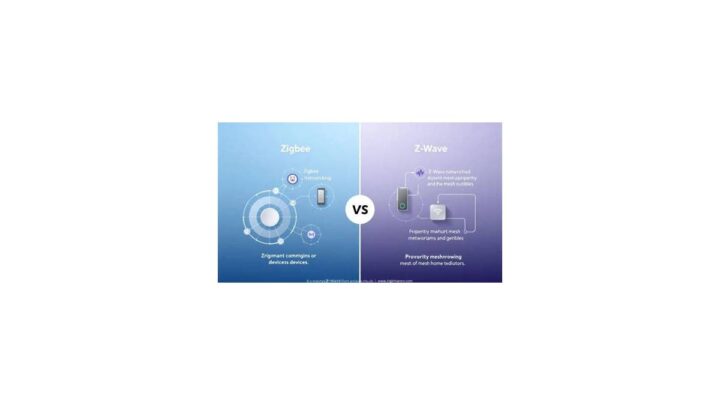
Both run on the same crowded 2.4 GHz band. Wi-Fi follows the IEEE 802.11 standard, while Zigbee runs on IEEE 802.15.4 and talks to your home through a hub. That single architectural difference explains almost every practical trade-off you'll hit as your smart home grows.
Let's break down what actually matters before you spend another dollar.
wifi vs zigbee smart devices
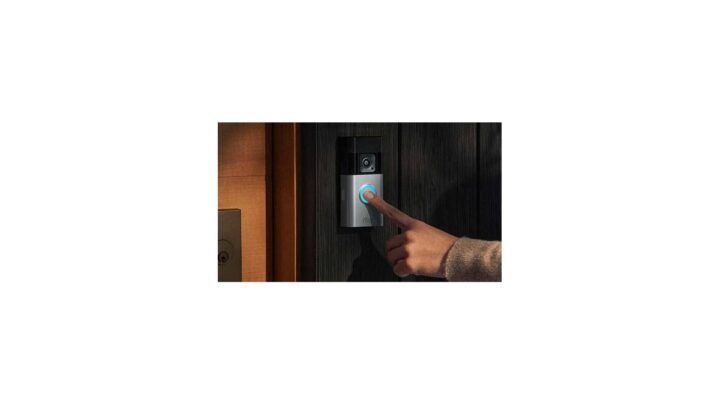
Wi-Fi devices connect straight to your router with no hub needed. They suit cameras and video doorbells. Zigbee devices form a low-power mesh through a hub and suit sensors, bulbs, and locks.
Most homes end up using both. Wi-Fi wins on simplicity. Zigbee wins on scale.
Matter now links them together.
Why This Choice Matters More Than You Think
Picking the wrong protocol for one device is easy to fix. Picking wrong for your whole home is expensive.
Here's the pattern our research keeps surfacing in smart home forums and aggregated user reviews. Someone buys 40 Wi-Fi bulbs during a sale. Six months later, half of them disconnect randomly.
The router is maxed out, the app lags, and the "smart" home feels dumber than a light switch.
What happens when you pick wrong (and how much it costs to fix)
Go Wi-Fi-first and scale past 20 or 30 devices, and expect three things: random drop-offs, slow app response, and occasional router reboots just to get things working again.
Per Wi-Fi Alliance documentation, consumer routers typically handle 30 to 75 connected clients before instability kicks in. That number isn't printed on the box. You only find out the hard way.
Go Zigbee-first without a hub, and nothing pairs at all. Zigbee devices need a coordinator to form a network. Without one, a Zigbee bulb is a paperweight in a very nice box.
Replacing a wrong pick mid-build is the real cost. Swapping 30 Wi-Fi bulbs for Zigbee means re-pairing, re-naming, and redoing every automation. That's a full weekend gone.
The one question that decides it before you buy anything
Ask yourself: how many smart devices will I own in two years?
- 1 to 15 devices: Wi-Fi is almost always fine. Skip the hub, save the money.
- 16 to 30 devices: Start mixing. Wi-Fi for cameras, Zigbee for sensors and lights.
- 30+ devices: Zigbee (or Thread) is the smarter backbone. Wi-Fi stays for video gear.
- Privacy-first, local-only control: Zigbee or Thread with a local hub. Cloud-reliant Wi-Fi won't cut it.
That single number shapes your decision more than any spec sheet.
Quick reality check on 2026 options
As of 2026, Matter and Thread have matured enough to blur the old Wi-Fi-versus-Zigbee lines. Matter is an application-layer standard from the Connectivity Standards Alliance, and it runs on top of either Wi-Fi or Thread. Thread is a mesh protocol built on the same IEEE 802.15.4 radio Zigbee uses.
That means a Matter-certified device can be Wi-Fi or Thread underneath. Cross-brand compatibility is finally real. The downside: you still need to know which radio sits inside the box before you buy.
For anyone building a small apartment setup, our picks for smart gear that fits tight spaces cover devices that don't need a full mesh network to work well.
Wi-Fi and Zigbee, Explained Like You've Never Heard of Either
Strip away the marketing and both protocols are just ways for small radios to talk. The difference is how they organize the conversation.
Think of Wi-Fi as a room full of people all shouting at one person (your router). Zigbee is more like a bucket brigade, where each person passes the message to the next until it reaches the hub.
How Wi-Fi talks to your smart devices (star network, router as boss)
Wi-Fi is a star network. Every device connects to one central point, your router or mesh node, and traffic flows through it. If the router is offline, nothing talks.
This is why Wi-Fi smart devices are so plug-and-play. There's no coordinator to set up. You enter your Wi-Fi password, and the device joins the network like a phone or laptop would.
The catch is that your router is a bottleneck. Every smart plug, bulb, and camera on Wi-Fi competes for the same connection table, the same bandwidth, and the same router CPU cycles. Add enough and things slow down.
Wi-Fi also consumes real power. Per manufacturer specs for common Wi-Fi smart plugs, these devices draw several hundred milliwatts continuously. That's fine when they're plugged into mains power.
It's terrible for anything running on a coin cell.
How Zigbee builds its own little mesh (coordinator, routers, end devices)
Zigbee organizes devices into three roles: a coordinator, routers, and end devices.
- Coordinator (ZC): the hub. Forms the network and manages it. One per network.
- Router (ZR): mains-powered devices (bulbs, plugs) that pass messages along and extend range.
- End Device (ZED): battery-powered sensors that sleep most of the time and wake only to report.
That last point is the whole magic trick. A Zigbee sensor can sleep for 99% of its life, waking briefly to send a few bytes. That's why a Zigbee door sensor lasts one to three years on a single coin cell, while a comparable Wi-Fi sensor dies in weeks.
The mesh is self-healing. If one router drops offline, Zigbee reroutes through another. Wi-Fi's star topology can't match that without mesh access points doing the same job at higher cost and power draw.
The trade-off? Zigbee's low power and small packets mean low bandwidth. It's perfect for on/off commands and sensor readings.
It's useless for streaming video.
The 2.4 GHz band they're both fighting over
Here's the part most guides skip. Both Wi-Fi and Zigbee live in the 2.4 GHz ISM band, which spans 2.400 to 2.4835 GHz. So do Bluetooth, cordless phones, baby monitors, and your microwave.
In North America, Wi-Fi uses channels 1 through 11 inside that band. Zigbee uses channels 11 through 26. Those ranges overlap heavily, and when they do, packets collide and latency spikes.
The fix is channel planning. Set your Wi-Fi router to channel 1, 6, or 11 (the only non-overlapping Wi-Fi channels), then set Zigbee to a channel in the gap. Zigbee channels 15, 20, 25, and 26 sit cleanly outside those three Wi-Fi channels.
Skip this step and you'll blame the devices. The real problem is radio interference. A quick tune in your router and hub settings solves most "random disconnects" complaints.
One regional note: EU and UK routers allow Wi-Fi channels 1 through 13. Japan allows even less 2.4 GHz space. Outside the US, check which Zigbee channel is cleanest for your location before locking it in.
The Real Differences That Change Your Setup
Specs on a box tell you half the story. What changes how your home feels day-to-day is power, topology, scale, latency, and where your data lives.
Power draw and why your battery sensors die in weeks or last years
Wi-Fi radios are power-hungry. Zigbee radios are not. That's a 10x to 100x difference depending on the device class.
- Zigbee motion sensor: 1 to 3 years on a CR2450 coin cell
- Zigbee door/window sensor: 1 to 2 years on a CR2032
- Wi-Fi battery doorbell: 1 to 6 months depending on how often it records
- Wi-Fi battery camera: weeks to a few months, sometimes less
For battery gear, Zigbee isn't just better. It's in a different weight class. Wi-Fi's power draw makes sense only when the device is mains-powered or genuinely needs high bandwidth.
Aggregate user reviews back this up constantly. The "battery died again" complaint almost always traces back to a Wi-Fi device running on cells.
If you're gearing up for a broader tech refresh across your home, our roundup of upgrading the gadgets that matter covers which categories benefit most from protocol changes.
Network topology: one router or a self-healing mesh of 50 bulbs
Wi-Fi is a star. Zigbee is a mesh. That single difference explains why 50 Zigbee bulbs scale beautifully and 50 Wi-Fi bulbs bring your router to its knees.
In a Wi-Fi star network, every device talks only to the router. The router tracks every connection, manages every handshake, and routes every packet. Its connection table and CPU are finite resources.
In a Zigbee mesh, mains-powered devices act as routers themselves. Each one extends reach and shares the routing load. Add a bulb and you've added coverage, not congestion.
Do that 30 times and you have a network that reaches every corner of the house without a single mesh access point.
The practical takeaway: if your device count is climbing, Zigbee doesn't just handle it, it gets stronger with each addition. Wi-Fi gets weaker.
Device limits: when your Wi-Fi router taps out
Per Wi-Fi Alliance guidance and manufacturer specs, most consumer routers support somewhere between 30 and 75 simultaneous clients before dropping the weakest connections. Some entry-level models tap out closer to 20.
Here's how that plays out in real homes:
- Studio apartment: 8 Wi-Fi devices, no problem
- Two-bedroom: 20 devices, getting warm
- Family home: 35 devices, now you're dropping connections
- Smart-home hobbyist: 60+ devices, expect chaos unless you've got a high-end mesh system
Zigbee networks handle 200+ nodes on a single coordinator in real-world deployments. The theoretical Zigbee address space allows tens of thousands. The math alone tells you which protocol scales cleaner.
Latency, bandwidth, and why video always goes Wi-Fi
Zigbee is fast for tiny packets. Wi-Fi is fast for big ones. Those two facts drive where each protocol belongs.
- Zigbee command latency: typically under 100 ms for on/off and dimming
- Wi-Fi command latency: comparable, but with more variance under load
- Wi-Fi bandwidth: 10 to 1,000+ Mbps, easily handling 1080p or 4K video streams
- Zigbee bandwidth: a few hundred kbps at most, nowhere near video-capable
That's why every smart doorbell and indoor camera on the market runs on Wi-Fi or Ethernet. Zigbee physically cannot carry a video stream. Don't expect it to.
But for turning a light on, locking a door, or reading a temperature, Zigbee's low-overhead packets are actually snappier than a loaded Wi-Fi network.
Local control vs cloud dependency (and why it matters at 2 a.m.)
Most Wi-Fi smart devices lean on a vendor cloud to work. When that cloud has an outage, your lights, plugs, and switches stop responding, even though your internet and router are fine.
Zigbee hubs often run locally. A Philips Hue bridge or a Hubitat keeps everything on-premises. If your internet drops at 2 a.m., the Zigbee lights still work through your hub and app on the local network.
For a privacy-focused household, that difference is huge. No cloud means no vendor logging when your lights turn on, when your door opens, or when you're home. Just check the hub vendor's data policy before buying.
The trade-off: local control usually means one more app, one more piece of hardware, and more setup time. That's the real cost of independence.
Side-by-Side: Wi-Fi vs Zigbee at a Glance
Numbers beat narrative here. Here's how the two protocols compare on the specs that matter in a real home.
Specs table: range, power, node limits, latency, security
| Spec | Wi-Fi | Zigbee |
|---|---|---|
| Standard | IEEE 802.11 (Wi-Fi 4/5/6/6E/7) | IEEE 802.15.4 (Zigbee 3.0) |
| Band | 2.4 / 5 / 6 GHz | 2.4 GHz only |
| Topology | Star (router as hub) | Mesh (coordinator + routers + end devices) |
| Typical indoor range | 30–50 m open, much less through walls | 10–30 m per hop, extended via mesh |
| Max nodes (practical) | 30–75 per router | 200+ per coordinator |
| Bandwidth | 10–1,000+ Mbps | ~250 kbps |
| Battery life (sensor) | Weeks to months | 1–3 years |
| Hub required? | No | Yes (coordinator) |
| Security | WPA2 / WPA3 | AES-128-CCM* (Zigbee 3.0) |
| Local control | Vendor-dependent | Common via hub |
Cost table: upfront price vs cost to scale to 30 devices
Upfront sticker price favors Wi-Fi. Long-term cost favors Zigbee. Here's the honest math.
| Setup | Wi-Fi-first | Zigbee-first |
|---|---|---|
| Hub cost | $0 | $30–$130 |
| Smart plug cost | $8–$15 each | $8–$18 each |
| Bulb cost | $5–$15 each | $10–$25 each |
| 30-device total (rough) | $250–$450 | $350–$700 |
| Router upgrade needed later? | Often, yes | Rarely |
| Re-pairing hassle at scale | Frequent disconnects | Stable |
Wi-Fi looks cheaper upfront. Once you factor in a mesh router upgrade to handle the client load, Zigbee's premium narrows fast. Both protocols are viable.
The question is which pain you'd rather pay for: money upfront or time later.
If you want to weigh the wider picture of what actually returns value in a smart home, our breakdown of which connected tech earns its keep explains where the money goes in a typical build.
Match the Protocol to the Device Type
Not every smart device belongs on the same radio. Match the protocol to what the device actually does, and most of your headaches disappear.
Where Zigbee wins: sensors, bulbs, locks, low-power gear
Zigbee is built for anything that sleeps most of the day and wakes to send a few bytes.
- Door and window sensors: 1 to 2 years on a coin cell
- Motion sensors: 1 to 3 years, depending on reporting frequency
- Leak and water sensors: years of standby, ideal for Zigbee
- Smart bulbs: mains-powered, they double as mesh routers
- Smart locks: battery life matters, and Zigbee nails it
- Thermostats and temperature sensors: low bandwidth, low power, perfect fit
Every mains-powered Zigbee device you add strengthens the mesh. Add a bulb in the hallway, and the sensor in the back bedroom suddenly has a stronger route to the hub. It's the only protocol where buying more gear actively improves reliability.
Where Wi-Fi wins: cameras, doorbells, anything streaming video
Wi-Fi is the only sensible choice for high-bandwidth devices. Zigbee physically can't push a video stream.
- Video doorbells: continuous or event-based video needs Mbps, not kbps
- Indoor and outdoor cameras: same story, plus cloud AI features usually run over Wi-Fi
- Smart displays: video calls and streaming
- Robot vacuums with mapping: larger data payloads, often to cloud
- Smart TVs and streaming sticks: obvious, but worth saying
The rule of thumb: if the device has a camera or a screen, put it on Wi-Fi. If it just senses or switches, put it on Zigbee.
Where Matter and Thread are quietly rewriting the rules
Matter is the new cross-brand standard from the Connectivity Standards Alliance. It runs on top of Wi-Fi or Thread, so the underlying radio can be either.
Thread is a mesh protocol built on the same IEEE 802.15.4 radio Zigbee uses. It's IP-native, which means Thread devices get real IP addresses and don't need a proprietary bridge. Think of it as Zigbee's IP-native sibling.
As of 2026, most new smart-home gear ships with Matter certification. If you're buying today, check for the Matter logo. It means the device will work across Alexa, Google Home, Apple HomeKit, and SmartThings, at least in theory.
The catch: Matter still has rough edges. Some certified devices work perfectly across ecosystems, others only expose a subset of features outside their native app. Thread border routers (the Thread equivalent of a Zigbee hub) are also uneven in quality across brands.
For anyone getting into smart lighting, our guide to making a home feel connected covers which lighting setups hold up best across platforms.
What Kind of Smart Home Are You Actually Building?
Nobody builds a "generic smart home." You build a specific one, in a specific place, with a specific budget. Here's how the protocol decision maps to five common setups.
The 5-device starter setup (Wi-Fi is fine here)
You've got a couple of smart plugs, one bulb, maybe a doorbell. Skip the hub entirely.
Wi-Fi handles small device counts without breaking a sweat. Setup is a two-minute job per device. There's no coordinator to learn, no app to install beyond the vendor's own.
If you're in this category, stick with Wi-Fi and save yourself the complexity. You can always add a hub later if you outgrow it. There's no lock-in penalty for starting simple.
The 30-device household (Zigbee starts earning its keep)
This is the tipping point. At 25 to 35 devices, most consumer routers start showing cracks. Random disconnections, slower app response, occasional router restarts.
Zigbee at this scale is stable and predictable. Sensors stay paired for years. Lights respond instantly.
The mesh routes around any single failure.
If your goal is smart switches in every room, contact sensors on every door and window, and motion sensors in hallways, Zigbee is the right backbone. Wi-Fi would work, but you'd need a high-end mesh router to keep up, and you'd still be babysitting it.
The privacy-first / local-only build (hub required)
If you don't want a vendor cloud logging when your door opens, you need a local hub. Zigbee or Thread is essentially mandatory.
A Hubitat, Home Assistant, or Philips Hue Bridge keeps all automations on your own hardware. Internet outages don't break the lights. Your data stays home.
Wi-Fi devices can be made local in some cases, but it usually requires custom firmware or a manufacturer who explicitly supports it. That's a small fraction of the Wi-Fi smart device market. Zigbee hubs give you local control by default.
The renter's setup (portability matters more than you think)
In a rental, you can't rewire switches or mount permanent cameras. Everything you buy has to move with you.
Zigbee actually wins here for a different reason: portability. Hue bulbs and Aqara sensors unscrew and re-pair at the new place in minutes. No router reconfiguration required.
Wi-Fi gear varies. Some brands let you migrate easily. Others tie the device to a specific account or location and require a factory reset to move.
Check that before you buy if you rent.
For small-space setups, our roundup of nifty upgrades for compact living focuses on gear that survives a move without a full reset.
The Home Assistant tinkerer (both, with a Zigbee stick)
If you're running Home Assistant, the answer is simple: both. Add a Zigbee coordinator USB stick and you've got the best of every world.
Popular Zigbee sticks include the Sonoff Zigbee 3.0 dongle and the ConBee II. Both have strong Home Assistant integrations and support hundreds of devices.
Pair them with Matter support in Home Assistant, and you can bridge Wi-Fi, Zigbee, and Thread devices into one dashboard. That's the setup most enthusiasts converge on after a couple of years of trial and error.
Do You Already Own the Hub You Need?
Before you spend money on a standalone hub, check what you already own. Several popular smart speakers have Zigbee radios built in.
Checking your Echo, SmartThings, or Nest for a Zigbee radio
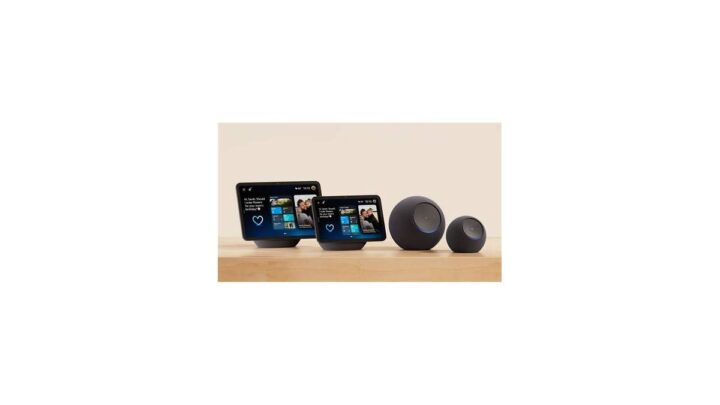
Amazon made this easy for a while: certain Echo models include a built-in Zigbee coordinator. The Echo Plus, the Echo Show 10 (3rd gen), and the Echo Hub all ship with Zigbee support.
If you own one of those, you don't need a separate hub for Zigbee basics. You can pair Zigbee bulbs and sensors directly through the Alexa app.
Samsung's SmartThings Station also acts as a Zigbee and Thread hub. If you bought one for a Galaxy phone, you already have half a smart home hub in the box.
Google's side is trickier. Nest Hubs don't have Zigbee built in, but the newer Google Home hub supports Thread and Matter. Google's Zigbee support has been inconsistent across generations, so verify your specific model before assuming it'll work.
Quick check: open your smart speaker's app, look for "Add device," and see if "Zigbee" appears as a pairing option. If it does, you've got a coordinator. If not, you're shopping for one.
When buying a separate hub actually pays off
A dedicated hub is worth the money in four situations:
- You want local-only control: standalone hubs like Hubitat or Home Assistant keep everything offline
- You're mixing brands: a good hub bridges Hue, Aqara, IKEA, and Tuya Zigbee gear into one interface
- You want advanced automations: routines like "if motion AND door open AND it's after sunset, dim kitchen to 20%" need a hub that supports conditional logic
- You're planning past 50 devices: dedicated coordinators handle scale far better than built-in speaker radios
The Echo Hub, Hubitat Elevation, and Aqara Hub M2 are the most common picks. Each takes a different approach, so match the hub to the ecosystem you're already invested in.
Hub proliferation: how many bridges is too many
Here's the ugly truth about Zigbee: it's not always as open as it sounds. Some brands use proprietary Zigbee layers that only work with their own hub.
Philips Hue works with Hue Bridge or through Alexa's built-in Zigbee radio, but with feature limits in the second case. Aqara sensors often prefer Aqara hubs for full functionality. IKEA's Trådfri gear works with most Zigbee 3.0 coordinators but not all.
So you end up with three hubs and four apps. Home Assistant and Hubitat exist specifically to solve this. They can bridge multiple Zigbee networks into one dashboard.
If hub proliferation sounds like your current reality, a single unifying hub is worth the $100 or so. It cleans up your app list and makes your automations actually reliable.
For anyone building out a broader home setup, our look at the connected kitchen and living space walks through how hubs, speakers, and appliances can live on the same network without stepping on each other.
Setting Up Wi-Fi and Zigbee Without Losing Your Weekend
Here's where the theory meets reality. A few setup moves save hours of frustration later.
The 2.4 GHz-only SSID trick for stubborn Wi-Fi devices
Most Wi-Fi smart devices only work on the 2.4 GHz band. If your router broadcasts one SSID for both 2.4 and 5 GHz, the device tries to connect to 5 GHz, fails, and gives up.
The fix: log into your router and create a separate 2.4 GHz-only SSID, something like "HomeIoT." Connect all your smart devices to that.
This also cleans up your network. Your phones and laptops stay on the fast 5 GHz or 6 GHz band, while smart plugs and bulbs sit quietly on 2.4 GHz.
One extra perk: you can disable guest features and cloud management on that IoT network without affecting your main devices. It's a lightweight privacy win.
Zigbee channel planning: 15, 20, 25, and why not 11
Here's the setup step almost everyone skips, then blames the hardware for months.
Wi-Fi uses channels 1, 6, and 11 (non-overlapping). Zigbee channels 11 through 26 sit inside the same 2.4 GHz band. If your Zigbee network lives on channel 11 and your Wi-Fi router is on channel 1, you've got a collision course.
The clean Zigbee channels are 15, 20, 25, and 26. These sit in the gaps between Wi-Fi channels. Pick one and lock it in.
Where to change it:
- Philips Hue: Hue Bridge settings, "Zigbee channel," pick from a list
- Home Assistant: ZHA or Zigbee2MQTT configuration, set channel on the coordinator
- SmartThings: hub settings, "Zigbee utilities," change channel
- Aqara: hub settings, "Zigbee channel," manual selection
Do this before you pair 30 devices. Changing the channel later forces every device to re-pair. Trust us on that one.
Pairing a Zigbee device the first time (and the second time)
The first pairing is usually smooth. The second pairing (after a battery swap, hub move, or a device dropping offline) is where people give up.
First-time pairing in five steps:
- Put your hub into pairing mode (usually in the app under Add Device)
- Put the device into pairing mode (hold the button 5 to 10 seconds until an LED blinks)
- Keep the device within a few meters of the hub for the initial join
- Wait for the app to confirm the device joined
- Rename the device so you actually know what it is later
Re-pairing after a drop-off is basically the same process, but the device may need to be removed from the hub first. Some coordinators also need a "permit join" window open for 60 to 120 seconds.
If a device won't pair, try: fresh battery, delete from the hub app, reset the device, then re-pair. Also check your Zigbee channel isn't clashing with Wi-Fi.
Extending the mesh with mains-powered routers
Zigbee mesh range is per-hop, not end-to-end. A single bulb covers a small area, but 10 bulbs across a house cover everything.
The trick is placing mains-powered Zigbee devices (bulbs, plugs, in-wall switches) between your hub and your battery sensors. Each one becomes a router node. Each one extends range.
If a sensor drops offline regularly, don't blame the sensor. Check whether there's a mains-powered Zigbee device between it and the hub. If not, add one.
A $10 smart plug in the next room often fixes "unreliable" sensors instantly.
Avoid placing Zigbee routers in metal enclosures or behind thick concrete. Both block the signal, and you'll end up with dead zones that confuse the mesh.
Mistakes That Wreck Smart Homes
Most smart-home frustration traces back to a handful of repeatable mistakes. Here are the ones flagged most often in aggregated user complaints.
Assuming your router can handle 60 clients
Consumer routers lie about their limits in subtle ways. The box might say "supports 100 devices." In practice, 30 to 50 real clients is where things start slipping.
Smart devices are chatty. They check in with the cloud, respond to app commands, and broadcast presence on the network. A router that handles 5 laptops fine can choke on 30 light bulbs.
If you're Wi-Fi-first and pushing past 30 devices, budget for a mesh router with a stated 100+ client capacity. Otherwise, split the load with Zigbee.
Buying Zigbee gear without a coordinator
You can't use Zigbee devices without a hub. This sounds obvious, and yet it's the most common beginner mistake reported in user forums.
A Zigbee bulb by itself does nothing. It needs something to pair with, a Hue Bridge, an Echo Plus, a Home Assistant stick, a SmartThings hub, or one of the other Zigbee coordinators on the market.
Before buying, confirm which hub you'll pair it with. Some brands, like Aqara, only officially support their own hubs. Others, like Hue bulbs, work with most Zigbee 3.0 coordinators, though sometimes with reduced features.
Mixing brands and getting locked into a dead app
The smart home graveyard is full of dead apps. Brands get acquired, shut down, or drop support, and the devices you bought become bricks.
Sticking with Zigbee 3.0 and Matter-certified devices reduces this risk. Zigbee 3.0 devices can usually work with a new coordinator if the original app dies. Matter devices are designed to work across ecosystems.
Avoid proprietary wireless protocols dressed up as "smart home standards." If the spec sheet doesn't say Zigbee, Thread, Matter, or Wi-Fi, walk away.
Ignoring the 2.4 GHz congestion in apartments
Apartment dwellers face unique radio pressure. Your neighbors' Wi-Fi routers, Zigbee networks, Bluetooth speakers, and microwaves all fight for the same 2.4 GHz space.
In dense buildings, channel planning stops being optional. Use Wi-Fi on channel 1, 6, or 11, and Zigbee on 15, 20, 25, or 26. Test different combos if you have drop-offs.
If both bands are hopelessly congested, Thread is worth a look. Thread's channel agility and IPv6 routing handle crowded RF environments better than legacy Zigbee.
Re-pairing everything because you skipped the backup
If you're running Home Assistant or Hubitat, back up your configuration. If the coordinator dies or you change Zigbee channels, you'll want to restore rather than rebuild.
Most hubs have a backup feature. Use it before every firmware update and every channel change. It takes two minutes and saves a weekend.
If your hub doesn't support backups (some cheap Aqara and Tuya hub models don't), keep a written list of every device name and location. Rebuilding 40 devices from scratch is doable with a plan and miserable without one.
Real Households, Real Setups
Theory gets you halfway. Seeing how other people's setups actually work fills in the rest. Here are three real patterns we see repeat across user reports.
A one-bedroom apartment running Hue + Echo
A common apartment build looks like this: a Hue Bridge, 6 to 10 Hue bulbs, two motion sensors, and an Echo Show 10 acting as a backup Zigbee coordinator. Total spend: about $350.
The Hue Bridge handles the lighting mesh. The Echo Show handles any non-Hue Zigbee devices without needing a second hub. Wi-Fi covers the smart TV, a video doorbell, and a robot vacuum.
The key move was setting Wi-Fi to channel 6 and Zigbee to channel 25. Before that, the apartment had 12 neighboring Wi-Fi networks and constant drop-offs. After channel planning, zero drops for months.
Total device count: 22. Router load: manageable. No mesh router needed.
A four-bedroom house with 40 sensors and a Hubitat
This is the classic scaling story. A family home with door sensors on every exterior door, motion sensors in three hallways, water leak sensors under two sinks, and Zigbee bulbs in most rooms.
They started Wi-Fi-first, hit problems around device 25, and migrated lighting and sensors to Zigbee over two weekends. Hubitat Elevation became the main hub because of its local-only automations.
Total device count after migration: 47 Zigbee plus 6 Wi-Fi (cameras and doorbell). The router stopped dropping connections. Automations that used to take 2 to 3 seconds now fire in under 300 milliseconds.
The lesson: migrate the low-bandwidth, high-quantity devices to Zigbee. Leave the cameras and video doorbell on Wi-Fi.
A mixed build: Wi-Fi cameras, Zigbee lighting, Matter bridge
The most future-proof setup today uses all three: Wi-Fi for video, Zigbee for legacy gear, and Thread for new battery devices with Matter support.
A typical layout looks like this:
- Wi-Fi: 3 cameras, 1 video doorbell, 1 smart TV, 1 robot vacuum
- Zigbee: 20 bulbs, 14 sensors, 4 smart plugs (via Hue Bridge and Aqara Hub)
- Thread: 6 new sensors and 2 buttons (via an Apple HomePod mini as border router)
- Matter bridge: a single Home Assistant instance bridging all three into one dashboard
Why bother mixing Thread? New battery sensors selling in 2026 increasingly ship as Matter-over-Thread only. If you're buying sensors today and want them to work for a decade, Thread is the safer bet than legacy Zigbee.
For anyone thinking about adding smart lighting across an outdoor space or workshop, our coverage of gear that works off the grid touches on portable smart power banks that pair nicely with Zigbee sensors in sheds and garages.
The Long Game: Migration, Matter, and Future-Proofing
Smart-home gear ages faster than most electronics. Here's how to buy today without regretting it in 2028.
Will your Zigbee gear survive the Matter transition?
Yes, mostly. Matter is a bridge-friendly standard, and most major hub makers (Hue, Aqara, SmartThings, Hubitat) have added Matter bridging to their newer hubs.
That means your existing Zigbee devices can appear as Matter devices to other ecosystems. A Hue bulb on a Hue Bridge can show up in Apple Home or Google Home through Matter bridging, even though the bulb itself is Zigbee.
The caveat: older hubs without Matter support won't bridge. If your hub was made before 2022 and the vendor hasn't issued a firmware update, you may be stuck. Check your hub's support page before assuming it'll join the Matter party.
Thread: the protocol quietly replacing both
Thread is what happens when Zigbee's radio meets IPv6 and a mandate to play nice with everyone. Same 2.4 GHz band, same IEEE 802.15.4 foundation, but no proprietary coordinator needed.
A Thread network runs on border routers instead of hubs. Apple HomePod mini, Apple TV 4K (2nd gen and later), Google Nest Hub (2nd gen), and Amazon Echo (4th gen and later) all include Thread border router radios.
If you own any of those, you already have a Thread network. You just haven't turned it on. Adding a Thread sensor to your home is genuinely hub-free, and it'll work across all four major ecosystems.
The downside: Thread's ecosystem is still young. Device variety is narrower than Zigbee's, and some features (like advanced scenes) depend on which ecosystem you're using. But it's growing fast.
What to buy today if you don't want to rebuy in 2027
If you're buying smart-home gear in 2026 and want it to feel modern three years from now, look for these markers on the box:
- Matter certified: cross-ecosystem compatibility is baked in
- Thread or Zigbee 3.0: the two protocols most likely to be bridged forward
- Local control option: whether via hub or Matter, avoid cloud-only devices
- Firmware update history: check the vendor's track record of supporting older devices
- Avoid pre-2020 Zigbee 1.x gear: legacy devices often can't be updated
Wi-Fi devices can also be future-proof if they support Matter-over-Wi-Fi. But expect more router load, and expect the vendor's cloud to remain in the loop for most features.
Safety, Compliance, and the Boring Stuff That Isn't
None of this is optional once you're dealing with mains-powered smart plugs and switches. Getting compliance wrong can void insurance, brick devices, or worse.
FCC Part 15 certification and what the logos actually mean
In the US, every wireless device sold must meet FCC Part 15 rules. That covers radio emissions and interference limits. In the EU, it's the Radio Equipment Directive (RED).
In the UK, UKCA marks replaced CE after Brexit.
When you see an FCC ID on a smart plug, it means the device passed the required emissions tests. You can look up the ID in the FCC's public equipment database to confirm it's genuine.
Uncertified devices still slip through, mostly via gray-market import sites. They're the ones that cause Wi-Fi interference complaints, overheat, or fail safety checks. If a smart plug is suspiciously cheap and the seller has no FCC ID listed, skip it.
Zigbee 3.0, Wi-Fi CERTIFIED, Matter-certified: trust markers
Three certification logos matter on the box. Each tells you the device has passed testing by the relevant standards body.
- Zigbee 3.0 logo: device passed the Connectivity Standards Alliance's interoperability tests
- Wi-Fi CERTIFIED logo: device passed the Wi-Fi Alliance's certification program
- Matter logo: device passed CSA's Matter certification, tested for cross-ecosystem compatibility
Products without these logos aren't necessarily broken, but they haven't been independently verified. That matters most when mixing brands, where lax implementations cause pairing headaches and dropped connections.
UL and ETL listings for mains-powered plugs and bulbs
This is the safety piece that matters most for anything drawing mains power. A smart plug or in-wall switch that plugs into 120V or 240V needs a UL or ETL listing.
UL (Underwriters Laboratories) and ETL (Intertek) both test for electrical safety. Their marks mean the device has been checked against fire, shock, and overheating standards. Without one, you're running unverified electronics on mains power inside your home.
Some cheap smart plugs on marketplaces have fake UL marks. Verify by searching the UL Product iQ database or the Intertek directory. If the model number isn't listed, don't plug it in.
Cloud privacy: what your devices send back to the vendor
Every cloud-connected smart device reports home. What it reports varies wildly by vendor and is often buried in a privacy policy most people never read.
Things your Wi-Fi smart device may send:
- Device status changes (on/off, dimming levels)
- Timestamps of when you're home
- Wi-Fi network name (SSID) and signal strength
- IP address and rough geolocation
- Usage patterns tied to your account
Zigbee devices with local hubs typically don't send any of this. That's the biggest practical difference between running Hue via Hue Bridge (local) and Hue via Alexa (cloud-dependent).
If privacy matters, read the privacy policy for each vendor before buying. Look for "local control," "no data leaves your network," or "cloud optional" language. Those claims are worth the extra dollar.
The National Institute of Standards and Technology (NIST) publishes guidance on IoT device security at nist.gov that covers baseline expectations for consumer smart devices, including encryption and firmware update practices. It's dry reading, but worth skimming if you're running critical devices like locks and cameras.
For UK and EU readers, the equivalent guidance lives in EN 18031, the European standard for radio equipment cybersecurity that became mandatory under RED in August 2025. Any smart device sold in the EU after that date must meet it.
Common Questions, Straight Answers
A few questions come up constantly in our research. Here are the honest answers, no hedging.
Can Zigbee and Wi-Fi run in the same house without fighting?
Yes, easily. The two protocols share the 2.4 GHz band, but with proper channel planning they coexist without issue.
Set Wi-Fi to channel 1, 6, or 11. Set Zigbee to 15, 20, 25, or 26. Those ranges don't overlap, and both networks run clean.
The only time they fight is when you leave both on default settings and they collide. Five minutes of channel planning solves most coexistence problems.
Does Alexa support Zigbee out of the box?
Only on specific Echo models. The Echo Plus, Echo Show 10 (3rd gen), and Echo Hub include a built-in Zigbee coordinator. Most other Echo devices don't.
If you own a standard Echo Dot or Echo Show 5, you'll need a separate Zigbee hub. Check the product page for "built-in Zigbee hub" before assuming it works.
Do I need a hub for Zigbee?
Yes. Every Zigbee network needs a coordinator, which is the hub. Without one, Zigbee devices have nothing to talk to and won't pair.
The coordinator can be a dedicated hub (Hue Bridge, Hubitat, Aqara Hub M2), a smart speaker with a built-in Zigbee radio, or a USB stick plugged into a Home Assistant server. All three work. You just need one.
Is Zigbee obsolete now that Matter exists?
No. Zigbee is still shipping in new devices. Matter and Zigbee solve different problems, and they overlap more than they compete.
Zigbee is a low-power radio protocol with a mature device ecosystem. Matter is an application-layer standard that runs on top of Wi-Fi, Thread, or (via bridge) Zigbee.
Most new Zigbee gear ships with Matter bridging on the hub side, so your devices appear in Apple Home, Google Home, and Alexa without needing to swap the radios.
Which is cheaper in the long run?
Zigbee is usually cheaper once you pass 20 devices. The upfront cost is higher because you need a hub ($30 to $130), but the long-term cost of Wi-Fi is buried in a router upgrade.
A router that handles 60+ Wi-Fi clients costs $150 to $400 more than one that handles 25. Factor that in, and Zigbee's premium evaporates around device 25.
Below 15 devices, Wi-Fi is cheaper. Between 15 and 25, it's a wash. Above 25, Zigbee usually wins on total spend.
Why does my Wi-Fi smart plug keep disconnecting?
The three most common causes, in order of frequency:
- 2.4 GHz and 5 GHz band confusion: the plug joined 5 GHz, then dropped when the network changed. Fix by using a 2.4 GHz-only SSID.
- Router client limit: you've hit the ceiling on simultaneous connections. Fix by offloading some devices to Zigbee.
- Weak signal: the plug is at the far end of the house with two walls between it and the router. Fix by adding a mesh node or moving the plug.
Rarely is it the plug's fault. Most of the time, the network is the problem.
The Verdict: Pick by Device Count, Not by Hype
The Wi-Fi versus Zigbee question has one honest answer: it depends on how many devices you'll own. Everything else is secondary.
If you own 1 to 15 devices and have a solid router
Go Wi-Fi. Skip the hub. Save the setup time.
A standard router handles this load without issue. Setup is a two-minute job per device. There's no coordinator to learn and no app to install beyond the vendor's own.
Add Zigbee only when you start shopping for battery sensors. Wi-Fi sensors die too fast to be worth it, even in a small setup.
If you're heading past 20 devices, or want local control
Go Zigbee for lighting, sensors, and locks. Keep Wi-Fi for cameras, doorbells, and anything with video.
Buy a hub that matches your ecosystem. If you own an Echo Show 10 or SmartThings Station, you might already have one. If you want local-only control, buy a Hubitat or run Home Assistant.
Spend 10 minutes on channel planning. It's the single most impactful setup step you can take.
The mixed-protocol setup most real homes end up with
Here's what our research suggests is the sweet spot for a typical household in 2026:
- Wi-Fi: video doorbell, security cameras, robot vacuum, smart TV
- Zigbee: bulbs, wall switches, door and window sensors, motion sensors
- Thread: new sensors and buttons bought from 2025 onward
- Matter bridging: through a hub that supports it, connecting the whole thing
That setup handles 50 to 80 devices without stress. The router stays under its client limit. The Zigbee mesh strengthens with every bulb you add.
Battery sensors last years, not weeks.
It's not the simplest setup. It's the most reliable one for a modern home that keeps growing. And it's the one most people converge on after their first round of smart-home mistakes.
Start simple. Scale smart. If your device count doubles in a year, you'll be glad you set the foundation right the first time.

Similar Posts