Smart Home Setup: A Beginner’s Step-by-Step Guide 2026
Lead Consumer Product Specialist & Family Gear Director at US Family Mart Consumer Testing Lab · Certified Consumer Products Quality Specialist (CPQS), ASTM F15 Consumer Standards Member · 12+ years evaluating household appliances, smart home hardware, child safety equipment, and consumer lifestyle products.
If you've ever stood in a big-box store staring at a wall of smart bulbs and hubs wondering where to even start, you're not alone. Most people try to set up a smart home by buying gadgets first and figuring out compatibility later. That's exactly how you end up with three apps, two dead hubs, and lights that only work when the Wi-Fi feels like cooperating.
Getting "how to set up a smart home" right isn't about buying the most devices. It's about making a few decisions in the right order before you spend a dollar.
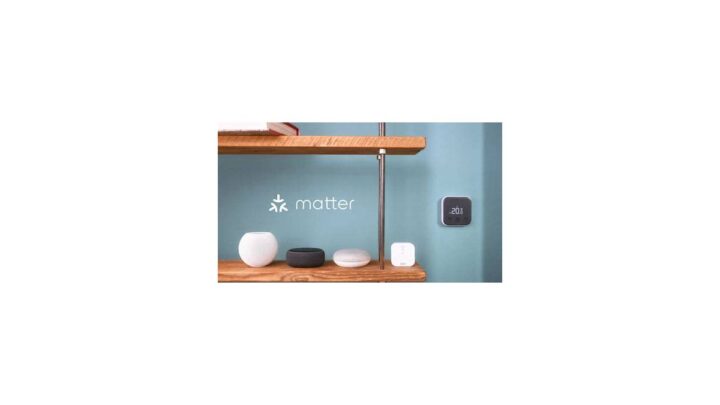
The good news: as of 2026, the process has gotten dramatically easier thanks to a standard called Matter. The Connectivity Standards Alliance built Matter so smart devices from different brands actually talk to each other. A Matter-certified device works across Alexa, Google Home, Apple Home, and SmartThings without proprietary workarounds.
That changes the math on how you plan your build.
how to set up a smart home
Plan your ecosystem first, then your hub, then your devices. Pick one platform like Alexa, Google Home, Apple Home, or SmartThings. Buy a Matter-certified hub and Matter devices for maximum compatibility.
Fix your Wi-Fi before pairing anything. Start with one room. Create scenes last.
Secure every account with two-factor authentication.
The Two Questions That Decide Everything Before You Buy a Single Device
Two questions determine your entire build path: who owns the space, and what outcome you actually want. Answer those first, and the rest of the setup becomes mechanical. Skip them, and you'll buy the wrong gear with the right intentions.
The first question matters because renters can't drill holes or replace hardwired switches. That's a completely different device list from what a homeowner can install. If you rent, your build leans on bulbs, plugs, stick-on sensors, and battery cameras.
If you own, you can go into the walls with smart switches, thermostats, and doorbell wiring.
The second question matters because "smart home" means five different things to five different people. Security, energy savings, convenience, accessibility, and entertainment each pull you toward different devices. A security-first build needs cameras, sensors, and a doorbell.
An energy-first build needs a thermostat and smart plugs. Convenience-first means lighting and voice control. Get clear on the outcome before you get clear on the cart.
If You Rent
Renters should stick to non-permanent devices. That means:
- Smart bulbs (E26 and E12 bases cover most fixtures)
- Smart plugs for lamps and small appliances
- Stick-on motion and contact sensors
- Battery-powered video doorbells (no wiring needed)
- Smart speakers and displays
- Window-mounted sensors
The trick for renters is to avoid anything that requires a neutral wire, a wall cut, or landlord permission. You can build a fully functional smart apartment without touching a single fixture. Our guide to the best smart home devices for apartments covers the specific gear that works without permanent installation.
If You Own Your Home
Homeowners can go into the walls. That opens up:
- Smart switches and dimmers (replace the switch, not the bulb)
- Smart thermostats with HVAC wiring
- Hardwired video doorbells
- Smart deadbolts
- In-wall smart outlets
- Wired security cameras with local NVR storage
Hardwired devices are more reliable and don't chew through batteries. They also require more planning. Check for a neutral wire in your switch boxes before you buy smart switches, because plenty of pre-1980s homes in the US and UK don't have one in every box.
Align Your Goal With Your Device List
| Goal | Core Devices | Skip For Now |
|---|---|---|
| Security | Cameras, doorbell, contact sensors, smart lock | Smart blinds, LED strips |
| Energy savings | Smart thermostat, smart plugs, presence sensors | Cameras, voice displays |
| Convenience | Smart bulbs, smart switches, voice assistant | Security cameras, sensors |
| Accessibility | Voice assistant, motion lighting, smart plugs | Manual-only devices |
| Entertainment | Smart TV, LED strips, smart speakers | Leak sensors, thermostats |
Pick one goal for month one. Add the second goal in month two or three, once your ecosystem is stable.
Pick Your Ecosystem First, Not Your Devices
Your ecosystem is the app and voice assistant that runs the show. It's the platform your hub talks to, and it's the interface you'll live with every day. Picking it first prevents the classic mistake of buying devices that only work in one ecosystem because you already owned that brand's speaker.
There are four realistic choices for most homes: Amazon Alexa, Google Home, Apple Home, and Samsung SmartThings. Each has strengths and quirks. None is objectively best.
It depends on what you already own and how deep you plan to go.
The Four Main Ecosystems
Alexa (Amazon) has the widest device compatibility and the most third-party integrations. If you already own an Echo, this is the path of least resistance. Privacy-conscious users often hesitate because of Amazon's always-on mics, but the devices themselves are polished.
Google Home is the strongest for natural-language voice understanding and integration with Google services. Nest cameras and thermostats work natively. If you live in Gmail and Google Calendar, this ecosystem feels seamless.
Apple Home wins on privacy and local control. Automations mostly run on your Apple TV or HomePod instead of the cloud. That means faster response and fewer outages.
The tradeoff is a smaller device catalogue and higher price tags on certified gear.
SmartThings (Samsung) is the enthusiast's pick. It supports Zigbee, Z-Wave, Thread, and Matter in a single hub, so almost any device on the market works. The app is less polished than the big three, but the flexibility is unmatched.
Quick Comparison
| Ecosystem | Best For | Weakness | Local Control |
|---|---|---|---|
| Alexa | Widest compatibility, budget gear | Cloud dependent by default | Limited |
| Google Home | Google users, Nest devices | Fewer advanced automations | Limited |
| Apple Home | Privacy, reliability, Apple users | Smaller device selection | Strong |
| SmartThings | Power users, mixed protocols | Steeper learning curve | Partial |
Should You Commit to One Ecosystem?
Yes, with a caveat. Pick one as your primary and let Matter multi-admin handle the rest. Matter-certified devices can join up to five ecosystems at once, so you're not locked in the way you were five years ago.
A Matter bulb can respond to Alexa, Google, and Apple commands simultaneously.
For more on the broader category, our smart home hub guides walk through the specific hardware options.
Match Your Protocol to Your Reality: Wi-Fi, Zigbee, Z-Wave, Thread, and Matter
A protocol is the wireless language a smart device speaks. Two devices on different protocols can still talk to each other if they share a hub, but only if that hub supports both. This is where most people get tripped up.
There are four protocols you'll encounter in consumer gear. Each has trade-offs in range, battery life, speed, and hub requirements.
The Four Consumer Protocols
Wi-Fi is the simplest. No hub needed. Your router talks to the device directly.
It's ideal for cameras, smart speakers, and anything that streams data or video. The downside: too many Wi-Fi devices clog your network. Most consumer routers start to feel the strain past 30 to 50 IoT devices.
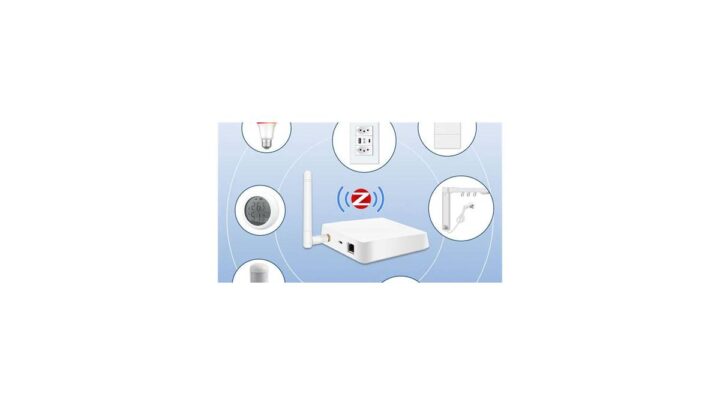
Zigbee is a low-power mesh protocol. Devices act as repeaters for each other, so the more powered Zigbee devices you have, the stronger the network. It requires a hub or a bridge.
Battery life on Zigbee sensors is typically 6 to 24 months. It runs on the same 2.4 GHz band as Wi-Fi, which can cause interference in dense neighborhoods.
Z-Wave is similar to Zigbee but runs on sub-1 GHz frequencies. That means less interference from Wi-Fi and better range through walls. It also needs a hub.
Z-Wave devices are typically more expensive than Zigbee ones, and the ecosystem is smaller in the US than in Europe.
Thread is the newcomer. It's an IPv6-based mesh protocol designed for low-power devices, and it needs a border router (the Apple TV 4K, HomePod Mini, and newer Echo and Google hubs all qualify). Thread devices respond fast because most commands run locally instead of bouncing to the cloud.
Where Matter Fits In
Matter isn't a protocol. It's a compatibility layer that sits on top of Wi-Fi, Thread, and Ethernet. When you see a Matter logo on a device, it means that device will pair with any Matter-certified ecosystem.
A Matter device that uses Thread as its transport needs a Thread border router. A Matter device using Wi-Fi needs your regular network. Both can be controlled from Alexa, Google, Apple, or SmartThings without brand-specific apps.
For a deeper protocol breakdown, the Connectivity Standards Alliance maintains the official specification and device certification database.
Protocol Decision Tree
- If you want zero hubs and simple setup → Wi-Fi bulbs and plugs. Fine for under 20 devices.
- If you want battery sensors that last a year or more → Zigbee or Thread.
- If you live in a dense apartment building with Wi-Fi congestion → Z-Wave or Thread.
- If you want future-proof hardware → buy Matter-certified, and match the transport to your hub's capabilities.
- If you already own a ton of one brand → stay in that protocol if the hub supports it, and add Matter devices gradually.
When You Actually Need a Hub (And When You Don't)
You don't need a hub if every device you own is Wi-Fi based and controlled by its own app. You do need a hub if you want to use Zigbee, Z-Wave, or (usually) Thread devices. You also need one if you want automations that keep working when your internet goes down.
A hub also fixes the app fatigue problem. Instead of hopping between six apps, you control everything from one dashboard. If you're building beyond a starter setup, a hub pays for itself in sanity.
Why Thread and Matter Change the Buying Math in 2026
Before Matter, buying smart gear was a bet on a brand's survival. If the company shut down its cloud, your devices became paperweights. Matter solves that by making the device's core functions work at the protocol level.
Thread solves the latency and reliability problem. Commands travel device-to-device over a mesh instead of looping through a server in Virginia. In our research, Thread and Zigbee sensors paired with a local hub typically respond in under a second, while cloud-only Wi-Fi devices often take 1 to 3 seconds.
The catch: Matter and Thread are still maturing. Onboarding can be clunky, especially for devices that require both your ecosystem app and the manufacturer's app for firmware updates. It's already better than it was in 2023.
It'll be better still in 2027.
Start-From-Scratch Setup: The Exact Order of Operations
The order matters more than the gear. Do these phases in sequence and you'll avoid most of the headaches people hit when they skip ahead.
Phase 1 – Fix Your Wi-Fi Before Touching Anything Smart
Most smart home problems are Wi-Fi problems in disguise. Before you pair a single device, make sure your network can handle the load.
- Check your router's age. Anything older than four years is probably a bottleneck.
- Confirm you have a 2.4 GHz band. Many smart devices won't join 5 GHz networks.
- Check your coverage. Dead zones in the kitchen or garage mean dropped devices later.
- Consider a mesh system if your home is larger than 1,500 square feet or has thick walls.
- Plan a separate network for IoT devices if your router supports guest networks or VLANs.
The 2.4 GHz issue trips up more people than any other setting. Cheap smart bulbs and plugs often only support 2.4 GHz, and a combined 2.4/5 GHz network can confuse them during pairing. If pairing fails twice, split your bands.
Phase 2 – Set Up the Hub and Create a Separate IoT Network
Plug your hub into your router with Ethernet if it has a port. Wired is more reliable than wireless for a hub that controls everything else.
Then set up a dedicated IoT network. Most modern routers let you spin up a guest network that isolates devices from your main one. That's better for security.
If a cheap smart bulb gets compromised, it can't wander into your laptop's traffic.
Log into your router admin panel, change the default admin password, disable WPS, and turn on WPA3 if your router supports it. These three steps alone put you ahead of most homes.
Phase 3 – Pair Your First Device and Name It Like You Mean It
Pair one device first. Test it thoroughly before adding more. If something is broken, you want to know it's the device, not your network.
Naming matters more than people think. "Lamp" is useless once you own five lamps. Use room-plus-fixture naming: "Living Room Floor Lamp," "Kitchen Counter Plug," "Bedroom Ceiling." Voice assistants handle these names without confusion.
Set the device's room in the app, not just the name. Scenes and geofencing rely on room tags. A bulb labeled "Bedroom" but not assigned to the Bedroom room won't behave correctly in room-based routines.
Phase 4 – Build Scenes, Routines, and Triggers That Actually Fire
A scene is a group of device states. "Movie Night" dims the lights, closes the blinds, and turns on the TV. A routine is a scene with a trigger.
Sunset, motion, geofence, or a voice command.
Start simple:
- One time-based routine (lights on at sunset).
- One presence-based routine (lights on when you arrive home).
- One voice command ("Alexa, good night").
Add complexity only after the basics work for a week. Stacked automations are hard to debug. If three things fire when you walk in the door, and two of them misfire, good luck figuring out which one.
Phase 5 – Add Sensors, Cameras, and Locks Without Breaking What Works
Now plug in the security layer. Cameras first, then door/window sensors, then locks last.
Why locks last? Because locks are the device most likely to fail in a way that strands you outside. Get your automations stable before you gate your front door behind a network.
Test the lock's manual override. Every smart lock has a physical key or code. Know it and keep a backup key somewhere off-site.
Phase 6 – Lock It Down: 2FA, Firmware, and Device Inventory
Turn on two-factor authentication on every smart home account. Amazon, Google, Apple, SmartThings, the camera manufacturer, the lock manufacturer. Every one.
Enable automatic firmware updates where possible. Smart devices are computers, and computers need patches. A camera that hasn't been updated since 2022 is a liability.
Keep a simple inventory. A shared note or spreadsheet listing each device, its app, its login email, and its purchase date saves you hours when something fails. It also tells you which devices are approaching end-of-life.
The US Cybersecurity and Infrastructure Security Agency publishes consumer IoT security guidance worth reading before you expand the network.
Renter Setup vs. Homeowner Setup: Two Completely Different Playbooks
Renters and homeowners need different plans, but the underlying logic is the same: choose devices that don't fight your space. Here's the side-by-side breakdown.
Renter Playbook
Keep it portable. Everything you buy should come with you when you move.
- Smart bulbs over smart switches. You can unscrew a bulb. You can't unscrew a switch.
- Smart plugs over in-wall outlets. Plug-in modules work anywhere.
- Battery video doorbells over hardwired. No wiring, no landlord calls.
- Adhesive sensors over screwed-in. Command strips handle most small sensors.
- Wi-Fi over Zigbee where possible. Fewer boxes to pack.
- A smart display or speaker in the main room. Voice control without installation.
Budget-wise, a starter renter setup typically runs $150 to $400 for one room and one shared space. Our apartments-focused gear guide covers specific picks for that profile.
Homeowner Playbook
You can install permanently, so prioritize reliability over portability.
- Smart switches over smart bulbs in high-use fixtures.
- Hardwired thermostats, doorbells, and cameras.
- Wired sensors in door frames and windows.
- A local hub (Hubitat, SmartThings, Home Assistant Yellow) for offline resilience.
- Structured wiring for cameras if you're renovating.
Budget-wise, a whole-home entry build runs $800 to $2,500 depending on how many categories you cover. Kitchen smart plugs and lights alone rarely justify the spend. Whole-home presence detection and security usually do.
Side-by-Side
| Factor | Renter | Homeowner |
|---|---|---|
| Switches | Smart bulbs only | In-wall smart switches |
| Thermostat | Portable or none | Hardwired smart thermostat |
| Doorbell | Battery, removable | Hardwired |
| Cameras | Battery, indoor + window mounts | Wired with NVR |
| Hub | Optional, favor hub-less | Local hub recommended |
| Portability | High priority | Low priority |
| Typical entry cost | $150 to $400 | $800 to $2,500 |
A Note on Leases and Landlords
Some leases restrict modifications like smart lock installation, especially in apartment buildings with shared entry systems. Check your lease before buying. Even battery-powered locks count as modifications in some agreements because they replace the existing deadbolt.
For a broader look at the category, our collection of smart home coverage digs into specific devices and categories.
One-Room Starter Builds by Budget ($150, $400, $1,000)
The single biggest mistake in year-one smart home building is trying to do the whole house at once. Pick one room, pick one budget, and finish the build before you expand. Here's what each tier actually gets you.
The $150 Starter
This is the "test the water" build. It covers one small room or one function and lets you learn your ecosystem without committing hard.
- One smart speaker ($30 to $50)
- Two to three smart bulbs ($10 to $20 each)
- One smart plug ($8 to $15)
- Optional: one stick-on motion sensor ($15 to $20)
Total lands around $100 to $150. You'll get voice control, one time-based routine, and basic scene capability. It's enough to know whether you actually enjoy having a smart home.
Skip cameras at this tier. A $40 indoor camera eats most of your budget and gives you one function instead of a foundation.
The $400 Mid-Tier
This is where the setup starts feeling like a real system. You can cover two rooms or one room plus a security layer.
- Everything from the $150 build
- Smart hub (SmartThings, Hubitat, or an Echo with built-in hub)
- Smart thermostat or smart lock (pick one, not both)
- Two contact sensors for doors or windows
- One indoor camera
- Two more smart plugs
The hub is the unlock at this tier. Once you have it, you can add Zigbee or Thread sensors cheaply later. Without it, you're locked into Wi-Fi-only gear.
Pick the smart lock over the thermostat if security is your priority. Pick the thermostat if energy bills are your pain point. A smart thermostat often trims 8 to 15 percent off heating and cooling costs, per US Department of Energy guidance on programmable thermostat savings.
The $1,000 Full-Room Build
At $1,000 you can genuinely finish a primary living space or cover a whole-floor security setup. This is where rooms start to feel "done" instead of half-built.
- Everything from the $400 build
- Smart switches for the room's main fixtures ($30 to $50 each)
- Video doorbell (hardwired if you own, battery if you rent)
- Two outdoor cameras or a 2-camera kit
- Smart blinds for one or two windows
- Additional sensors (leak, temperature, motion)
- Backup battery for the hub
Pick smart switches over bulbs once you're past $600 in spend. Switches control the whole fixture and don't need every bulb swapped. They're also more reliable than Wi-Fi bulbs in rooms with multiple fixtures on one circuit.
Which Tier Are You?
| Budget | Best For | Realistic Room Count | Skip |
|---|---|---|---|
| $150 | Testing the waters | One small room | Cameras, hub |
| $400 | Real system, one area | One room + security | Smart blinds |
| $1,000 | Finished room or floor | One floor or two rooms | Whole-home automations |
If you're not sure, start at $400. The $150 build often leaves people stuck, because there's no hub to add cheap sensors to later.
The Devices That Are Actually Worth It and the Ones That Aren't
Not every smart device earns its spot. Some solve real problems that manual alternatives handle fine. Others are clever demos that sit unused after a month.
Here's the honest breakdown based on what aggregate user reviews and long-term usage data tend to show.
Devices That Pay Off
- Smart plugs. Cheap, universal, and useful for lamps, coffee makers, irons, and holiday lights. If a device has a physical power switch you leave on, a plug makes it smart.
- Smart thermostats. Real energy savings if you're away from home on a schedule. Less useful if someone is home all day.
- Smart locks. Keyless entry and remote unlock are genuinely convenient. Also great for letting in cleaners, dog walkers, or guests.
- Video doorbells. Package theft and porch monitoring are real concerns. This is often the highest-value single device in a beginner build.
- Leak sensors. A $20 sensor under the washing machine can save thousands in water damage. Underrated by every beginner.
- Motion sensors for hallways and stairs. Hands-free lighting beats voice commands in transitional spaces.
- Smart blinds. Niche, but a game-changer for east- or west-facing bedrooms where sunrise wake-ups are a problem.
Devices That Disappoint
- Smart refrigerators. The screen rarely adds value. Repair costs are high, and the smart layer usually fails first.
- Smart coffee makers. Timer-based models have existed since the 1980s. The smart layer rarely justifies the price bump.
- Smart toasters and kettles. No real automation scenario. Voice control of a 3-minute task is slower than turning a knob.
- Smart mirrors and bathroom displays. Novelty. Humidity and steam shorten device life.
- Smart bulbs in switched fixtures. If someone flips the wall switch, the bulb loses power and stops responding to voice or app commands. Smart switches are better for these.
- Wi-Fi cameras with no local storage. Cloud subscriptions add up. Local NVR or microSD recordings often cost less over three years.
A Simple Worth-It Test
Before you buy any smart device, ask three questions:
- Does this replace a task I do weekly or more often?
- Would I notice if it stopped working?
- Is there a cheaper non-smart alternative that would do the job?
If you answer no to two of them, skip the device. Most smart home regret comes from buying things that fail this test.
Common Setup Mistakes That Cost You Real Money
Every mistake in this section has cost someone hundreds of dollars. The good news is that all of them are easy to avoid if you're paying attention.
Buying Devices Before Picking a Hub
This is the number one issue. You buy a Zigbee sensor, then discover you need a hub. You buy a Wi-Fi-only camera that can't be added to your SmartThings dashboard.
You buy a Matter device that requires a Thread border router you don't own.
Fix it by picking your hub and ecosystem first, then buying only what that hub supports. Every dollar spent on incompatible gear is a dollar spent twice.
Ignoring Protocol Compatibility
A Zigbee motion sensor won't talk to a Z-Wave hub without a bridge. A Matter device using Thread needs a Thread border router. A Wi-Fi bulb on a 5 GHz network will fail to pair.
Read the fine print on the box or listing before purchase. Look for three words: "Matter certified," "Thread," or the specific protocol your hub supports.
Overloading the Router
Consumer routers typically handle 30 to 50 connected devices before things get flaky. Cameras are the worst offenders. Each camera maintains a continuous stream to the cloud.
If your router is 4+ years old and you're adding 30 devices, upgrade the router first. A mesh system with dedicated IoT support costs $150 to $400 and fixes more issues than any individual device swap.
Skipping Two-Factor Authentication
Smart home accounts are valuable targets. A compromised camera streams your home to a stranger. A compromised lock gives physical access.
Enable 2FA on every smart home account. No exceptions.
Buying Cheap Non-Certified Devices From Unknown Brands
A $6 smart plug from a brand you've never heard of may lack UL or ETL certification. That means no verified safety testing. In-wall devices especially should carry visible safety listings.
For low-voltage devices like sensors, the risk is smaller but real. For anything that plugs into mains power or goes in a wall, only buy certified gear.
Naming Devices Badly
"Lamp 1," "Lamp 2," and "Lamp 3" become unmanageable the moment you own more than three. Voice assistants will guess wrong. Automations break when you move a lamp between rooms.
Fix it on day one. Use room-plus-fixture naming, always assign rooms in the app, and rename any device the moment its role changes.
Building Automations Before Basics Work
Stacked automations are hard to debug. If you set up seven routines in week one, and three misfire, you'll spend hours tracking down which condition is off.
Build one routine. Test it for a week. Then add the second.
Skipping the Neutral Wire Check
In-wall smart switches usually need a neutral wire. Many pre-1980s homes don't have one in every switch box. Check before you buy, or you'll be returning switches or paying an electrician to run new wire.
Turn off the breaker and pull one switch to check. If you see only two black wires and no white, you likely don't have a neutral. Smart bulbs and smart plugs avoid this problem entirely.
Security, Privacy, and the Rules You Can't Ignore
A smart home is a small network of internet-connected devices. Every device is a door. Most are fine.
Some open too easily if left unmanaged.
Baseline Security Checklist
- Change default admin passwords on routers, hubs, and cameras.
- Enable two-factor authentication on every smart home account.
- Keep firmware updated. Turn on auto-update where available.
- Use WPA3 or WPA2 encryption on your Wi-Fi network.
- Put smart devices on a separate guest network or IoT VLAN.
- Disable universal plug and play (UPnP) on your router unless a specific device requires it.
- Turn off remote access on cameras you don't need to view while away.
- Cover or disable indoor cameras in private spaces.
A Note on Always-On Microphones
Smart speakers listen for wake words locally, but some voice data still travels to the cloud for processing. Amazon, Google, and Apple all publish their retention policies. Read at least one before you put a speaker in a bedroom.
If privacy is paramount, Apple Home and smart displays with hardware mic switches are the safest bet.
Legal Considerations That Actually Apply
A few rules catch people off guard:
- Two-party consent states in the US require permission to record audio conversations. Cameras with audio recording in California, Florida, and a handful of other states have specific requirements.
- Landlords in shared buildings may restrict doorbell cameras that capture common areas. Check the lease.
- Homeowners associations (HOAs) sometimes restrict outdoor cameras, especially those that overlook neighboring property.
- UK and EU users have additional obligations under GDPR if cameras capture public spaces.
- Some rental agreements prohibit smart lock installation even when the original deadbolt is preserved.
When Cameras Capture More Than You Think
A doorbell camera pointed at a shared hallway captures neighbors who didn't consent. That's a real legal risk in two-party consent states. Point cameras at your own property and minimize the field of view where possible.
Firmware and End-of-Life Risks
Smart devices are small computers. When a manufacturer stops releasing updates, existing vulnerabilities stay unpatched. Check the manufacturer's stated support window before purchase.
Devices with local-only control (Matter plus Thread, for example) survive a manufacturer shutdown better because they don't depend on the company's cloud. That's one of the strongest arguments for the local-control path.
Keeping It Alive: Maintenance, Battery Swaps, and End-of-Life Planning
A smart home isn't a one-time project. It's a living system that needs occasional attention. The good news: most of the maintenance is trivial once your setup is stable.
Monthly Tasks
- Check the app for offline devices. Reconnect them before they become a mystery.
- Test one automation to confirm it still fires correctly.
- Confirm cameras are recording and the app shows recent footage.
Five minutes a month prevents most "why isn't this working" moments.
Quarterly Tasks
- Replace batteries in sensors proactively if you can't check levels remotely.
- Review firmware update logs. Install any pending updates.
- Test your smart lock's manual override with the physical key.
- Check the hub's storage or log if it has one.
Annual Tasks
- Re-test geofencing. Phone OS updates can break location permissions.
- Review your device inventory for aging hardware approaching end-of-life.
- Confirm backups exist for any local recordings or hub configuration.
- Update Wi-Fi passwords. Reconnect devices if needed.
Battery Life Reference
| Device | Typical Battery Life |
|---|---|
| Motion sensors (Zigbee/Thread) | 12 to 24 months |
| Contact sensors | 12 to 24 months |
| Smart locks | 6 to 12 months |
| Video doorbells (battery) | 3 to 6 months |
| Leak sensors | 24 to 36 months |
| Smart thermostats | 12 to 24 months (or wired) |
Set a calendar reminder for a month before each expected swap. Dead batteries are the most common cause of "my automation stopped working."
End-of-Life Planning
Every smart device has a support window. Cameras often run 5 to 7 years. Hubs last longer if the manufacturer stays committed.
Some cheap brands disappear in 2 years.
When a device reaches end-of-life, decide between three paths: replace with a Matter-certified equivalent, move to local control if the device supports it, or remove the function entirely if you never used it.
The smart home graveyard is full of devices people bought and forgot. Keeping an inventory and reviewing it once a year keeps that pile small. Our ongoing smart home coverage is a good place to see what's currently worth buying and what's worth skipping.
Quick Decision Guide: What to Do Next Based on Your Situation
Use this section like a flowchart. Find the scenario that matches your situation, follow the recommended action, and skip everything else.
If You Haven't Bought Anything Yet
Start with the ecosystem. Pick Alexa, Google Home, Apple Home, or SmartThings based on which phone and voice assistant you already use. Then set a starter budget, $150 to test the waters or $400 to build something solid.
Buy a hub if you're going past $200. Only then buy devices.
If You Rent an Apartment
Stick to bulbs, plugs, stick-on sensors, and battery cameras. Skip smart switches and hardwired thermostats. Confirm your lease allows doorbell cameras before you buy one.
Build one room first. Plan to take everything with you when you move.
If You Own Your Home
You can go for permanent installs. Check for neutral wires in switch boxes before buying smart switches. Consider a local hub for offline resilience.
Wire your doorbell and cameras if you're doing any renovation work. Smart thermostats pay back faster in owned homes because you stay long enough to see the savings.
If Your Wi-Fi Is Old or Weak
Upgrade the router before you add anything smart. A mesh Wi-Fi system with dedicated IoT support costs $150 to $400 and prevents more problems than any single device upgrade. Confirm 2.4 GHz support and split your bands if pairing fails twice.
If You Already Own Some Smart Devices
Inventory what you have. Identify the ecosystem each device lives in. If they're all in one app, add a Matter-certified hub and start migrating the important devices over.
If they're scattered across five apps, pick the ecosystem you like best and accept that some devices won't make the jump.
If Security Is Your Main Goal
Start with a video doorbell and two outdoor cameras. Add contact sensors to entry doors. Add a smart lock last, after you've tested everything else for a week.
Enable 2FA on every account the same day you set up each device.
If Energy Savings Are the Goal
Smart thermostat first. Then smart plugs on vampire-load appliances like TVs, consoles, and chargers. Add a presence sensor so the system knows when nobody is home.
Expect 8 to 15 percent off heating and cooling costs, per US Department of Energy guidance.
If Privacy Is Your Priority
Choose Apple Home or a local hub like Hubitat. Buy Matter devices where possible. Disable remote camera access unless you need it.
Cover or unplug indoor cameras in private spaces. Read the manufacturer's data retention policy before purchase.
If Someone in the Home Needs Accessibility Support
Voice control and motion lighting are the two highest-impact changes. Add a smart speaker in the main living area and another in the bedroom. Motion sensors handle hallways and stairs.
Smart plugs let you voice-control lamps and appliances that were previously manual.
Why Setup Usually Takes Longer Than You Expect
Most guides suggest an hour for a smart home setup. In our research, aggregate user feedback shows the realistic timeline is 3 to 5 hours for a starter build, spread over two or three sessions. Rush it and you'll redo parts of it.
Realistic Time Budgets
| Setup Phase | Realistic Time |
|---|---|
| Router and network prep | 30 to 60 minutes |
| Hub setup and account creation | 20 to 30 minutes |
| Pairing first device | 10 to 20 minutes |
| Pairing each additional device | 5 to 15 minutes |
| Building one scene | 10 to 15 minutes |
| Building one routine with triggers | 20 to 30 minutes |
| Security lockdown (2FA, firmware) | 30 to 45 minutes |
A typical first-day session covers router prep, hub setup, and three to five devices. Day two handles automations and scenes. Day three adds security and finishes the lockdown.
Why It Takes Longer Than Advertised
Voice assistants sometimes misinterpret device names during setup. Firmware updates stall. A device that pairs on the first try might drop off the network the next day and need re-pairing.
Zigbee and Thread devices sometimes need a hub restart to join correctly.
None of that is a sign you did something wrong. It's just how consumer smart home gear works in practice. Budget for the friction and it won't frustrate you.
Troubleshooting the Most Common Setup Problems
Most issues people hit during setup fall into five buckets. Here's how to diagnose each.
Device Won't Pair
Check the network band first. If your router broadcasts 2.4 GHz and 5 GHz under the same name, temporarily split them. Pair the device to the 2.4 GHz network specifically.
Then check the protocol. A Zigbee device needs a Zigbee hub. A Thread device needs a Thread border router.
A Matter device needs a Matter controller.
Finally, reset the device completely. Most smart devices have a 5 to 10 second button hold that factory resets them. Pairing after a clean reset works more often than reattempting a partial pair.
Device Pairs Then Goes Offline
This is almost always Wi-Fi signal strength. Move the device closer to the router or add a mesh node. If the device is battery-powered and battery life dropped fast, weak signal is likely the culprit.
For Zigbee and Thread devices, offline problems usually mean the mesh is weak. Add a powered repeater (a plugged-in Zigbee or Thread device) between the hub and the offline device.
Voice Commands Don't Work
Voice assistants struggle with vague device names. "Light" fails because the assistant doesn't know which one. "Living Room Ceiling Light" works consistently.
Also verify the device is assigned to the right room in the ecosystem app. Room assignment drives room-based voice commands like "turn on the bedroom lights."
Automations Fire Incorrectly
Geofencing false triggers are common. They usually mean your phone's location permission is set to "While Using" instead of "Always." Change it to "Always" for the smart home app, then retest.
Motion sensor false positives often come from pets, HVAC vents, or direct sunlight. Reposition the sensor or lower its sensitivity in the app.
Time-based routines that fire twice usually have overlapping triggers. Check for duplicate automations and delete the redundant one.
Hub Keeps Disconnecting
Wired Ethernet is the fix for most hub issues. If your hub supports Ethernet and you're using Wi-Fi, switch to wired. If the hub is wireless-only, move it away from the router itself.
Too-close placement can cause interference.
Also check the hub's power supply. A failing USB adapter causes intermittent disconnects that look like network problems.
What to Buy First If You Only Buy Three Things
You don't need a full system on day one. Three devices cover the majority of beginner use cases.
The Three Device Starter Kit
- A smart speaker or smart display. Voice control is the entry point to everything. Alexa, Google, or Apple depending on your ecosystem. Costs $30 to $100.
- A pack of smart plugs. These turn any lamp, fan, or appliance into a controllable device. A 4-pack runs $25 to $45 and covers most starter needs.
- One smart bulb for a lamp you use daily. A single Wi-Fi or Matter bulb in a frequently used lamp gives you your first real automation moment, like lights on at sunset.
That's $80 to $150 and covers voice control, remote control, and one automation. It's enough to know whether you want to keep going.
What to Add Second
Your fourth device should be either a smart thermostat (if energy savings matter) or a video doorbell (if security matters). Those two are the highest-value upgrades after the starter kit.
The fifth device should be a smart hub if you're going to keep expanding. With a hub in place, the next $200 of sensors and switches does far more than $200 of Wi-Fi devices. Our broader tech gadget coverage tracks which categories are gaining real capability each year and which are plateauing.
What to Add Last
Smart locks, smart blinds, and smart appliances go last. They're high-value in specific scenarios but cost more and take longer to set up. Wait until your foundation is stable and your automations have been running for at least a month.
Frequently Asked Questions
How long does it take to set up a smart home?
A starter build takes 3 to 5 hours across two or three sessions. That covers network prep, hub setup, three to five devices, and basic automations. Adding security, sensors, and scenes typically pushes the total to 8 to 12 hours spread over a month.
Do I need a hub for a smart home?
Not for Wi-Fi-only devices. A hub is worth it once you go past 10 devices, use Zigbee, Z-Wave, or Thread gear, or want automations that work when your internet goes down. Matter-certified hubs also let you control devices from multiple ecosystems at once.
What is Matter, and does it actually matter yet?
Matter is a compatibility standard from the Connectivity Standards Alliance that makes certified devices work across Alexa, Google Home, Apple Home, and SmartThings. It matters as of 2026. Most new devices are Matter certified, and buying Matter hardware future-proofs your setup against ecosystem changes.
Can I set up a smart home if I rent?
Yes, and renters often build the most portable smart homes. Stick to smart bulbs, plugs, stick-on sensors, and battery cameras. Skip anything that needs wiring or wall cuts.
Confirm your lease allows doorbell cameras, since some buildings restrict them.
Is a smart home worth it?
For most people, yes, if you pick the right devices. Smart plugs, thermostats, doorbells, and leak sensors earn their cost quickly. Smart fridges, toasters, and mirrors rarely do.
Focus on devices that replace tasks you do weekly, and skip the novelty gadgets.
What's the biggest mistake beginners make?
Buying devices before picking an ecosystem and hub. This leads to incompatible gear, app fatigue, and devices that can't be automated together. Fix it by choosing your platform first, then buying only what that platform supports.
Matter certification is the easiest way to confirm compatibility.

Similar Posts